How do I download a video from Twitter or X?
Twitter has no save button and two domain names, which is most of the confusion — the underlying job is getting a single tweet's link into something that can read the video behind it.
- Guide
- How-to
- Read
- 12 min
- Language
- English
Steps checked against the Savvy Android app on
Devikon Research Team
Share it across rather than copying it
There are two routes into Savvy and they are not equally quick, so it is worth knowing which one you are choosing.
The fast route is the share icon on the tweet itself. Tap it, choose Share via or Share post via, and pick Savvy from the app list. The link is handed straight over and the download starts by itself — Savvy fills its own link field and fires the download without waiting for you to press anything. You never see the home screen.
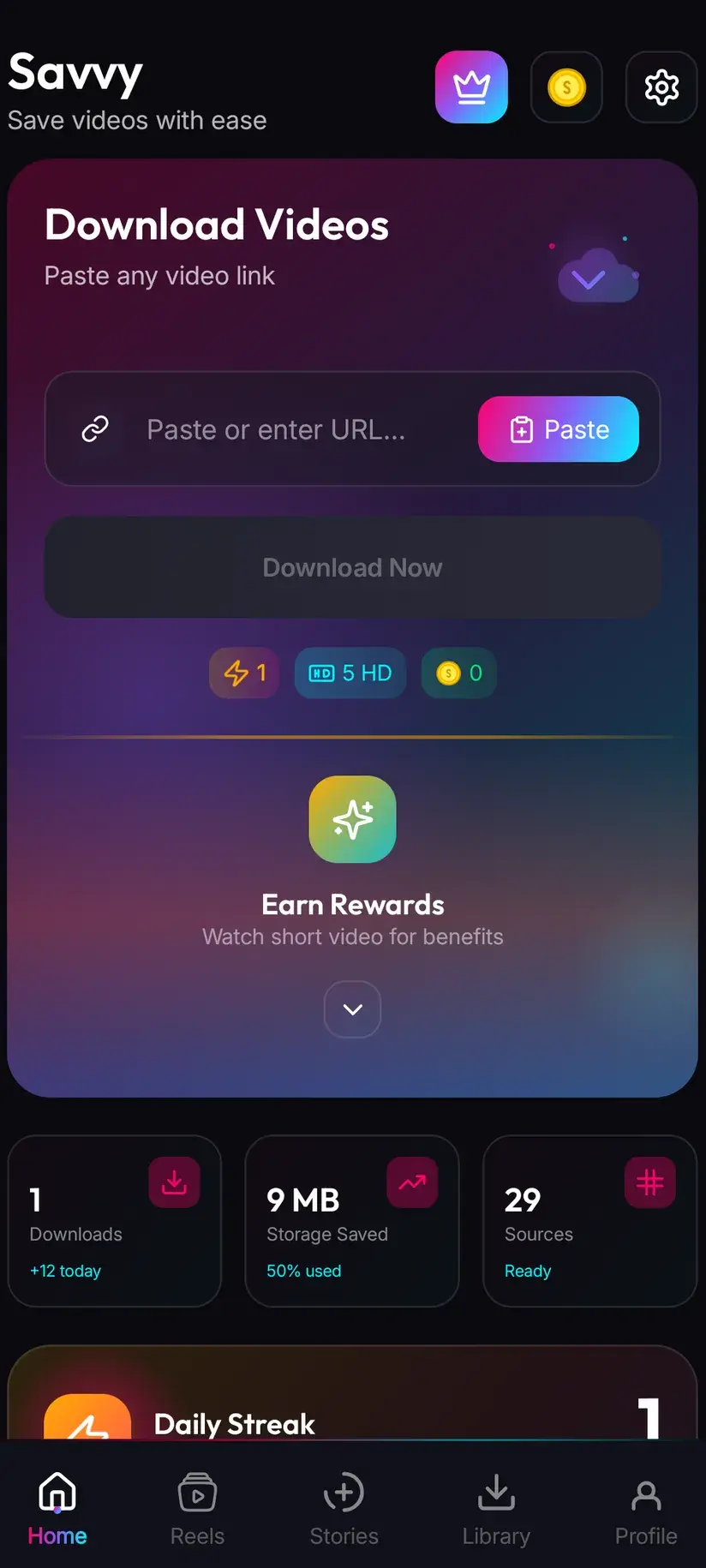
The slower route is copy-and-paste. Tap the share icon, choose Copy link, open Savvy, tap the Paste button beside the link field, then tap Download. Be precise about that third step, because a lot of downloaders claim otherwise: Savvy does not monitor your clipboard in the background, and switching to it does not start anything. Paste is an ordinary button. It reads the clipboard once, checks the link is a shape it recognises, and drops it in the field. Nothing happens until you tap Download.
One tap against four, then. Use the share sheet unless the link is already sitting in a message, a note or a browser address bar — in which case pasting is your only option and works exactly the same.
- Share to Savvy — link filled and download started automatically
- Copy link, then Paste — tap Paste to fill the field, then tap Download yourself
- A tweet link pasted from WhatsApp, a Discord message or a browser bar behaves identically to one copied from the app
- If Paste rejects the link, what you copied is probably a profile or a search URL rather than a single tweet
Which link shapes actually work
This platform generates more wrong-link confusion than any other, mostly because it has been through a rename and the old domain never went away.
Both domains work. A link starting x.com and a link starting twitter.com point at the same tweet and are both recognised, along with the www and mobile variants — m.twitter.com, mobile.x.com and their counterparts. Old links you saved years ago do not need converting.
Shortened t.co links work too. Those are what Twitter substitutes into a tweet's own text, and they are common in messages and emails. They resolve to the real address before anything is extracted.
So do the embed-fixer domains — fxtwitter.com, vxtwitter.com and fixupx.com. If you spend time in Discord or on forums you will have seen these: people swap the domain so a tweet previews properly elsewhere. They are the same tweet with a different hostname on the front, and pasting one is fine.
What matters is not the domain but the shape. A link to a single tweet contains /status/ followed by a long number. A profile page, a search result, a hashtag view or a list has no /status/ in it, because there is no one video behind it to fetch. That is the check that turns a link away, and copying from the tweet itself rather than from wherever you happened to be looking fixes it.
- x.com/…/status/… and twitter.com/…/status/… — both fine, including www and mobile variants
- t.co/… — Twitter's own shortener, resolved before extraction
- fxtwitter, vxtwitter, fixupx — embed-fixer hostnames, accepted as the tweets they point to
- A profile, search or hashtag URL — no single video behind it, so it is refused rather than guessed at
A tweet with several videos or a mixed gallery attached is one link with more than one piece of media behind it. What comes back depends on which extraction provider reads the tweet, so if you get one clip and expected two, that is where the difference comes from rather than something you did wrong.
Why the quality list changes from tweet to tweet
Twitter does not store one file per video. When someone uploads a clip, it is transcoded into a small ladder of renditions at different resolutions and bitrates, and the player picks whichever suits the viewer's connection and screen at that moment. That is why the same video looks sharper on a good connection.
A downloader reads that ladder and shows you what is on it. The picker offers what Twitter is serving for that specific tweet, not a fixed menu — so a clip uploaded at high resolution offers several rungs, and a low-resolution upload, an old tweet, or a video that was re-shared through several accounts may offer only one or two.
The practical rule follows directly. Look at what is actually listed before deciding what to spend. If the top rung offered is 720p, that is the ceiling for that tweet, and nothing can be chosen or paid for that would improve it — the higher-resolution version does not exist at the source.
This is also why two videos that look identical in your timeline can offer completely different options once they resolve. You are not seeing the app being inconsistent; you are seeing two different upload histories.
- Several renditions per video — Twitter transcodes an upload into a ladder of resolutions and bitrates
- The picker lists that ladder — not a fixed set of options the app decided on
- A re-shared clip is often the worst case — each pass through an upload compresses it again
- Downloading cannot add detail that was never in the rendition you are pulling
What it costs, and where the free line sits
Once a link resolves, Savvy shows the qualities that tweet is genuinely available in and lets you choose.
Standard definition, up to 480p, is free — it comes out of a daily allowance rather than any balance, so ordinary everyday saving costs nothing at all. Given how much Twitter video is phone-shot, phone-uploaded and watched back on a phone, SD covers a great deal more of it than people expect.
Above 480p the cost is in coins, Savvy's in-app currency. The tiers are the same across every platform in the app:
- SD video, up to 480p — free, from your daily allowance
- HD and Full HD video — 10 coins, or one HD credit if you have one
- 2K video — 15 coins
- 4K video — 20 coins
- Images and audio — 5 coins
Coins are earned as well as bought: a short rewarded ad or a daily check-in both add to the balance, and the Coin Shop lists both routes next to the packs. Premium is the other way out — it removes ads and lifts the download limits, so the arithmetic stops mattering. The free tier is ad-supported through Unity Ads, which collects your device's advertising ID; the Savvy privacy policy sets that out.
When a tweet refuses to resolve
Failures here have a small number of causes, and knowing which one you are looking at saves a lot of pointless retrying.
Protected accounts cannot be read. If a tweet is only visible to approved followers, it is gated at Twitter's end. A downloader fetches the same page your browser fetches and receives the same refusal. No app can get you into an account you cannot already see, whatever its store listing implies.
Deleted and withheld tweets are the same story from a different direction: there is nothing behind the link any more. A tweet withheld in your country will not resolve either.
Then there is the ordinary failure, where the tweet is public and it still does not work. Savvy tries a Twitter link against five extraction providers in priority order, falling through to the next automatically when one comes back empty — one of them handles Twitter and nothing else. You see one spinner rather than five attempts. So a failure means the entire chain came back empty, which is exactly why hammering Download again immediately rarely helps. Twitter changes its markup and its endpoints, providers catch up, and the same link often works perfectly a few hours later.
- Protected account — gated at the source, and no amount of retrying changes that
- Deleted or withheld tweet — nothing behind the link to fetch
- Public but failing — the whole provider chain came back empty; wait and retry later
- Wrong link shape — a profile or search URL, refused before any provider is asked
Downloading and having rights to what you downloaded are separate things. Personal offline viewing is a long way from reposting or monetising someone else's clip. Is downloading videos legal? sets out where the line usually falls, and it is worth reading once.
Watermarks, and where the file ends up
Savvy does not add a watermark. Whether a saved video carries one is settled by the source long before a downloader is involved.
Twitter does not stamp a handle or a logo onto native uploads the way TikTok stamps its exports. What travels with the file is whatever was already burned into the picture — a creator's watermark, a broadcaster's bug, a TikTok stamp on a clip that was downloaded from TikTok and re-uploaded to Twitter, which describes a large share of the platform's video. Those are pixels in the frame, not metadata, and removing them means cropping and re-encoding rather than downloading differently. There is exactly one platform where a genuinely unstamped save is possible, and it is TikTok, through TikTok-specialist providers. It does not carry over here.
The finished file lands in your device's Downloads folder, in a Savvy directory filed by platform. From there it is an ordinary MP4: it appears in your gallery, plays in any video app, and shares onward like anything else.
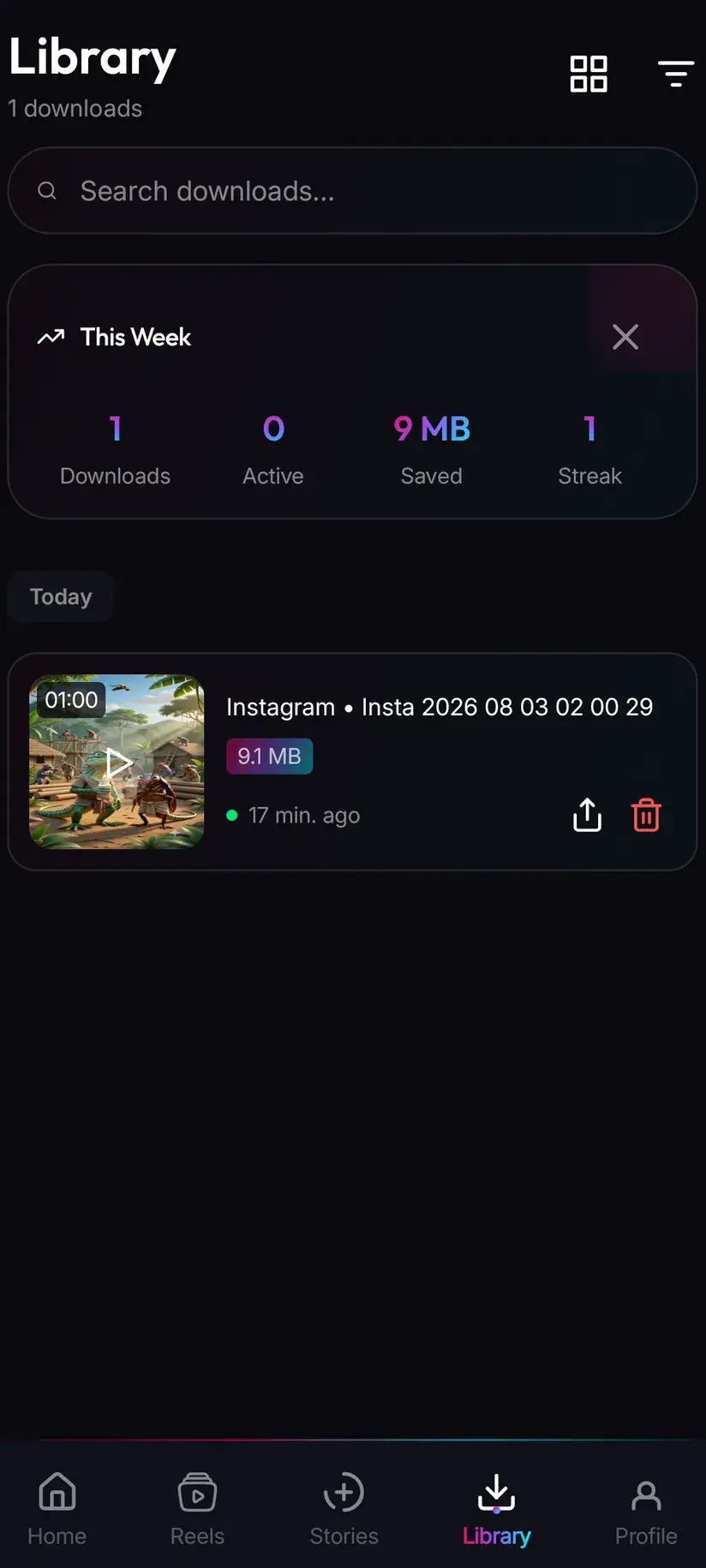
Inside the app, Library is the quicker way back — everything you have saved, with search and filters, so finding one clip from a fortnight ago is not a scroll through a gallery of screenshots. Storage sits alongside it, showing what each download occupies with bulk delete, which starts to matter surprisingly quickly once a few HD clips have accumulated.
Procedure
How to download a Twitter video
Under a minute for the first one. You need no Twitter account for a public tweet, and no Savvy account at all.
Install Savvy and allow storage access
Install Savvy from Google Play and open it. Grant the storage permission when asked — it is what lets a finished download be written where your gallery can see it rather than staying inside the app.
Open the tweet
Find the tweet with the video, in the Twitter or X app or in a browser. Play it once to confirm it is the right one and that it is publicly viewable rather than posted by a protected account.
Send the link to Savvy
Tap the share icon on the tweet and choose Share via, then pick Savvy. The link is handed over and the download starts on its own. If Savvy is not offered in the share sheet, choose Copy link instead and continue with the next step.
If you copied instead, tap Paste and then Download
Open Savvy and tap the Paste button beside the link field. That fills the field and checks the link is one the app recognises — it does not start anything. Tap Download afterwards. Both x.com and twitter.com links work, as do t.co short links and the fxtwitter, vxtwitter and fixupx variants.
Choose from the qualities offered
Savvy lists the renditions Twitter is actually serving for that tweet. SD up to 480p is free from your daily allowance; HD and above spend coins. Pick the highest option genuinely listed rather than assuming a better one exists behind it.
Let it finish, then check Library
Progress shows in the app. When it completes the file is in your Downloads folder under Savvy, filed by platform, and listed under Library inside the app where search and filters make it easy to find again.
Frequently asked questions
- How do I download a video from Twitter or X?
- The quickest way is the share icon on the tweet: tap it, choose Share via, and pick Savvy. The link is handed over and the download starts on its own. If Savvy is not in the share sheet, choose Copy link instead, open Savvy, tap the Paste button to fill the link field, then tap Download. Paste only fills the field — it does not start the download by itself, and the app does not watch your clipboard in the background.
- Do x.com links work, or does it have to be twitter.com?
- Both work. x.com and twitter.com point at the same tweet and are both recognised, along with the www and mobile variants. So are t.co short links, which is what Twitter substitutes into tweet text, and the embed-fixer hostnames people use on Discord and forums — fxtwitter, vxtwitter and fixupx. What matters is the shape rather than the domain: a single tweet's link contains /status/ followed by a long number. A profile or search URL has no single video behind it and is refused.
- Why does the quality list differ between tweets?
- Because Twitter transcodes each upload into a small ladder of renditions at different resolutions and bitrates, and a downloader can only offer what is on that ladder. A clip uploaded at high resolution offers several rungs; an old tweet, a low-resolution upload or a clip that has been re-shared through several accounts may offer only one or two. Check what the picker lists before spending on a higher tier, because nothing can recover detail the source never had.
- Is downloading Twitter videos free?
- Standard definition up to 480p is free — it comes from a daily allowance rather than any balance, so ordinary saving costs nothing. Above 480p you spend coins: 10 for HD or Full HD, or one HD credit, 15 for 2K, 20 for 4K, and 5 for an image or an audio-only file. Coins are earned free by watching a short rewarded ad or checking in daily, as well as bought in packs. Premium removes the ads and lifts the limits instead.
- Can I download a video from a protected account?
- No. A protected account's tweets are gated at Twitter's end, and a downloader fetches the same page your browser does — it gets the same refusal. No app can reach an account you cannot already see, whatever it advertises. These tools are for content you already have access to: your own posts, clips you have permission to use, or public video you want to rewatch offline.
- Will the saved video have a watermark?
- Savvy does not add one. Twitter does not stamp native uploads the way TikTok stamps its exports, so a clip filmed and posted to Twitter usually arrives clean. Anything already burned into the picture travels with it, though — a creator's watermark, a broadcaster's bug, or a TikTok stamp on a clip that was re-uploaded from TikTok, which covers a lot of Twitter video. Those are pixels in the frame, and removing them means cropping and re-encoding rather than downloading differently.
- Why does a tweet link sometimes fail?
- Usually because Twitter has changed the page it serves. Savvy tries a Twitter link against five extraction providers in priority order and falls through automatically, so a failure means the whole chain came back empty rather than one attempt going wrong — retrying immediately rarely helps, while waiting a few hours often does. The other causes are simpler: the tweet was deleted, it is withheld in your country, the account is protected, or the link was a profile rather than a single tweet.
- Where do downloaded Twitter videos save?
- In your device's Downloads folder, under a Savvy directory filed by platform. It is an ordinary MP4 from there — it shows up in your gallery and plays in any video app. Inside Savvy, the Library screen lists everything you have saved with search and filters, and the Storage screen shows what each download occupies so you can clear several at once when space gets tight.