How do I download a video from Facebook?
Facebook hands out four or five different link shapes for the same video, and the only one that matters is whether the link points at a single post — everything after that is one tap.
- Guide
- How-to
- Read
- 13 min
- Language
- English
Steps checked against the Savvy Android app on
Devikon Research Team
Send the video to Savvy rather than copying its link
Two routes get a Facebook video into Savvy, and one is meaningfully faster than the other.
The quick one is Facebook's own share sheet. On the video, tap Share, then Share to other apps (Facebook buries it under its internal share options — Send in Messenger, Share to Feed, and so on, with the system sheet at the bottom), and pick Savvy. The link is handed straight over and the download starts by itself. You do not see the home screen, you do not type, and the clipboard is never involved.
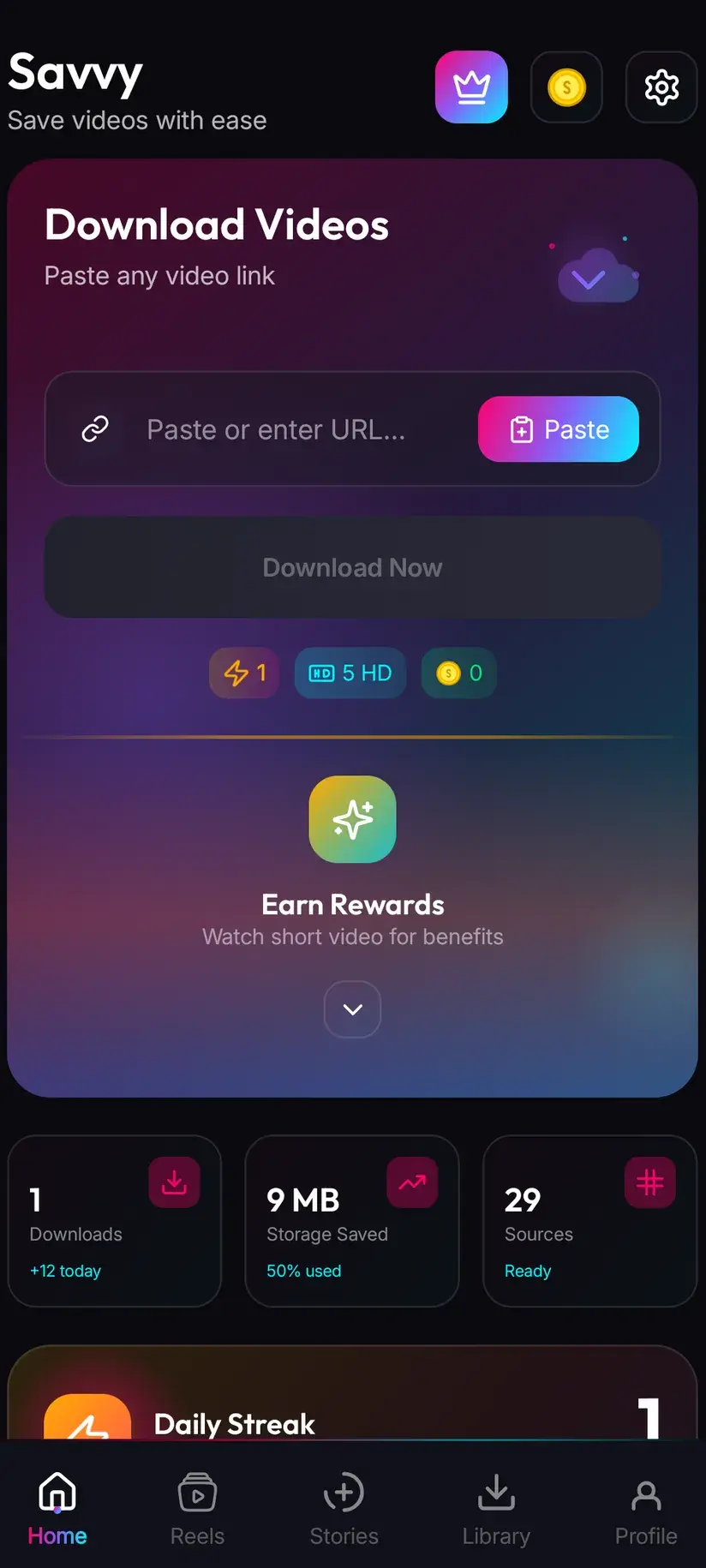
The other route is copy-and-paste. Tap Share, choose Copy link, open Savvy, tap the Paste button beside the link field, then tap Download. Be clear about what Paste does, because plenty of downloader apps imply something more dramatic: Savvy does not read your clipboard in the background, and switching to the app does not trigger anything. Paste is an ordinary button — it reads the clipboard once, drops what it finds into the field, and stops. Download is a separate deliberate tap.
Which you use mostly depends on where the video is. Inside the Facebook app, share across. If someone has messaged you a link, or you already have one in a note or a browser address bar, pasting is your only option and works identically.
- Share to Savvy — link filled and the download started for you
- Copy link, then Paste — Paste fills the field, then you tap Download
- A link from Messenger, WhatsApp, a note or a browser address bar behaves exactly like one copied inside Facebook
- Nothing is read from your clipboard until you tap Paste
The link shapes Facebook actually gives you
Facebook is unusually messy here. The same video can be reached through half a dozen URL forms depending on where you tapped Share and which app you were in, and people reasonably assume some of them are not supported. Most are.
facebook.com/watch/?v= is the Watch player — what you get from a video opened in the Watch tab or from a desktop share. facebook.com/<page>/videos/<id>/ is the permalink form, the one Pages and older posts hand out. fb.watch/<code> is Facebook's own short link for video, and fb.me is the general-purpose shortener; both are recognised and resolve to the real post. Newer shares often come out as facebook.com/share/v/<code>/ or facebook.com/share/r/<code>/, which are also fine.
Savvy identifies the platform from the domain, not the path. That means the mobile and legacy hosts all count as Facebook too — m.facebook.com, mbasic.facebook.com, touch.facebook.com, web.facebook.com, business.facebook.com, and even the l.facebook.com and lm.facebook.com wrappers Facebook puts around outbound links. If the host has facebook.com in it, the app knows what it is looking at.
The corollary is worth stating plainly, because it explains a failure people find baffling. Because detection is domain-based, a link that is not a single video — a profile, a Page's front page, a search result, the top of a group — is still accepted into the link field. It will not be turned away when you paste it. It fails later, when the app tries to resolve it and finds no single video behind it. If a link goes in fine and then errors out, that is usually what happened: go back to the video itself and share or copy from there.
- facebook.com/watch/?v=… — the Watch player
- facebook.com/<page>/videos/<id>/ — the permalink form
- fb.watch/<code> — Facebook's short link for video
- facebook.com/share/v/<code>/ — the newer share format
- m., mbasic., touch., web. and business. hosts all work
- A profile, Page or group URL is accepted but has no single video behind it, so it fails at resolution
Grab the link from the video, not from the feed. Tapping Share on a post whose main content is a photo album or a link preview gives you a post URL with nothing playable at the end of it. Open the video full-screen first, then share.
Why one Facebook link gets five attempts
There is no save-to-device button on someone else's Facebook video, and there never has been. Save video in the post menu is a bookmark — it files the post into your Saved collection, which lives inside Facebook, needs the app and a connection, and vanishes if the poster deletes the post.
The file itself is real. It sits on Facebook's content delivery network, and the post page points a player at it. A downloader reads that page, finds the media URL the player is using, and fetches the file. Nothing is decrypted and nothing is broken into.
What makes Facebook harder than most is that it changes constantly, and it serves different markup to different clients. A technique that read a Watch page cleanly last month can come back empty today. Savvy's answer is not to depend on any single technique: a Facebook link is tried against five extraction providers in priority order, and if the first returns nothing the next is tried automatically. One of those five is a Facebook specialist rather than a general-purpose extractor. You see one spinner, not five attempts.
That depth is also why retrying immediately rarely helps. By the time you see an error, the whole chain has already been exhausted. Waiting and trying the same link again later genuinely does help, because both Facebook's markup and the providers behind the chain move over time.
- Save video inside Facebook — a bookmark; needs the app, needs signal, disappears with the post
- Download — a real MP4 on your device that survives all three
- Five providers, tried in order, one request from your point of view
- A video that has been deleted, or was never publicly viewable, will not resolve at all — that is Facebook, not the app
Quality, and what the picker can honestly offer
Once a link resolves, Savvy lists the qualities that particular video is genuinely available in and lets you choose. Standard definition, up to 480p, is free — it comes out of a daily allowance rather than any balance, so ordinary everyday saving costs nothing at all.
Above 480p the cost is in coins, Savvy's in-app currency. Coins are earned as well as bought: a short rewarded ad or a daily check-in both add to your balance, and the Coin Shop lists those routes alongside the packs. The free tier is ad-supported through Unity Ads, which collects your device's advertising ID — set out in the Savvy privacy policy.
Facebook deserves a specific warning about the picker, though. It re-encodes aggressively, and it re-encodes worst on the things people most want to keep — old uploads, videos reshared several times, and anything that arrived through a low-bandwidth connection. Many Facebook videos simply do not exist above 720p, and a fair number top out at 480p or below. Downloading cannot add detail that was never uploaded. Look at what the picker actually lists before spending on a higher tier; if the ceiling offered is 720p, that is the ceiling, and no app can raise it.
- SD video, up to 480p — free, from your daily allowance
- HD and Full HD video — 10 coins, or one HD credit if you have one
- 2K video — 15 coins
- 4K video — 20 coins
- Images and audio — 5 coins
A Premium subscription is the way out of the arithmetic altogether: it removes the ads and lifts the download limits, so the coin cost stops applying to anything you save. Coins and subscription state are held server-side against your account — the files themselves stay on your device.
What resolves, what does not, and what you may keep
The rule of thumb is simple and it holds up: if the video opens in a browser where you are not signed in, it can be downloaded from its link. Public Page videos, public posts, and anything shared to Public rather than Friends fall on that side.
What does not resolve is anything Facebook only serves to a signed-in account with the right relationship — a friends-only post, a video inside a private group, a story. A downloader fetches the same page your browser would fetch, and it gets the same refusal your browser would get while signed out. The Facebook specialist in the chain is explicit about this: hand it a restricted URL and it redirects to an error rather than returning a file. No app gets around that, whatever its listing claims.
There is no Facebook sign-in inside Savvy. Instagram stories are the one place the app holds a platform session of your own, through a separate in-app login on its own screen; Facebook has no equivalent, so every Facebook download goes through the public-link route described here.
Then there is the question underneath all of it, which is not technical. Being able to save something is not the same as being entitled to reuse it. Keeping a public clip to rewatch offline, saving your own uploads, or saving content you have permission to use is ordinary. Reposting someone else's video as your own, or putting it behind your own monetisation, is a copyright matter and has nothing to do with which app you used. Is downloading videos legal? sets out where that line usually sits, and it is worth reading once before the saving becomes a habit.
A private video's URL is accepted into Savvy's link field, which misleads people. Acceptance only means the app recognised the host as Facebook — it is not a check on whether anything is there. The failure comes a moment later, at resolution. That is expected behaviour for restricted content, not a bug.
Where the file lands, and getting back to it
Finished downloads are written to your device's Downloads folder, inside a Savvy directory, sorted into a subfolder per platform — so a Facebook video ends up at Downloads / Savvy / Facebook. From that moment it is an ordinary MP4: it shows up in your gallery, plays in any video app, and can be shared onward like any other file. It is on the device, not in a cloud locker, and deleting it deletes it.
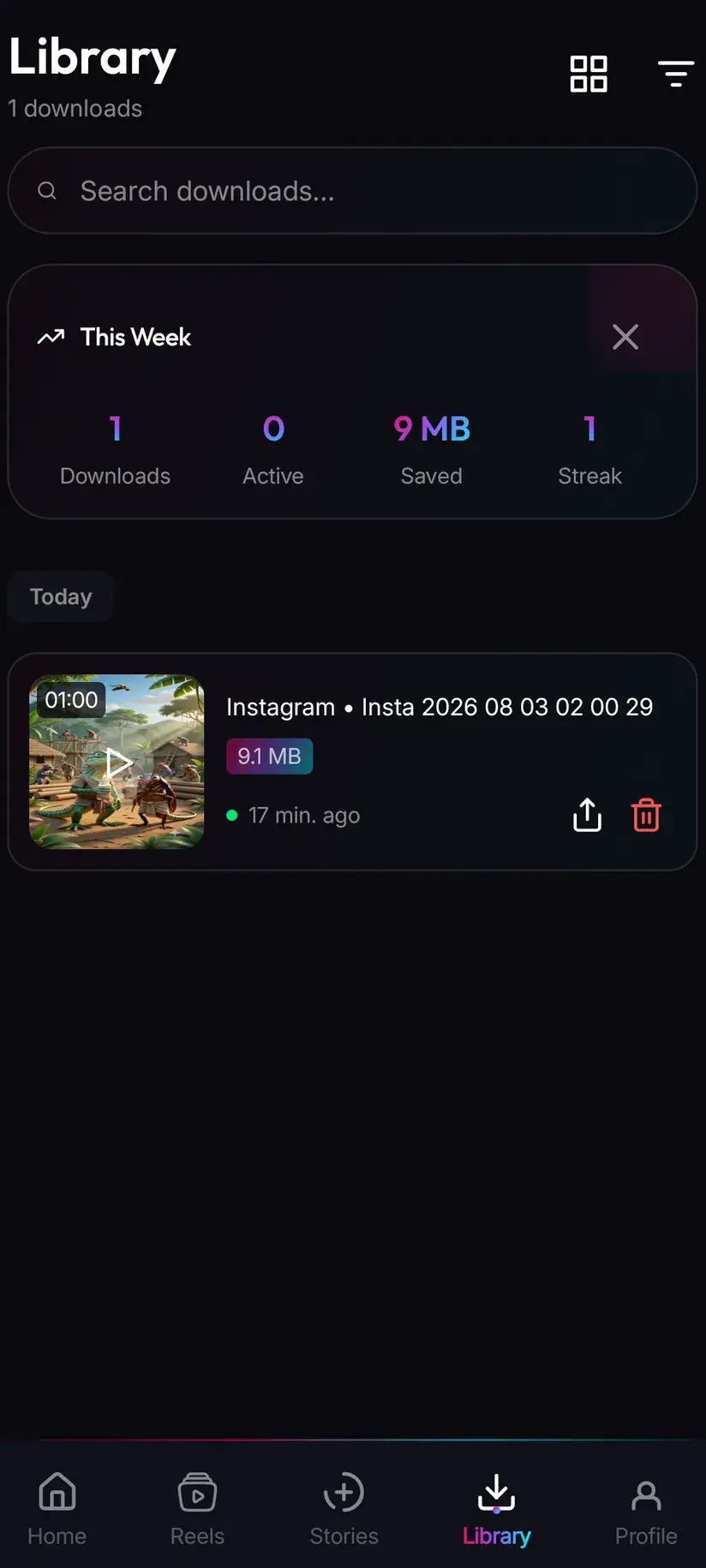
Inside the app, Library is the faster route back. Everything you have saved is listed there with search and filters, which matters once you have a few dozen files and a gallery full of screenshots between you and the one you want. The Storage screen sits alongside it and shows what each download is costing you in space, with the option to clear several at once — Facebook videos are often long, and long videos are large.
One asymmetry worth knowing: your saved files live entirely on the device, but your coin balance and subscription state are held server-side against your account. Clearing app data does not refund coins, and it does not delete anything you have already downloaded.
Procedure
How to download a Facebook video
Under a minute for the first one. You need no Facebook account for a public video, and no Savvy account at all.
Install Savvy and allow storage access
Install Savvy from Google Play and open it. Grant the storage permission when it is asked for — that is what lets a finished download be written somewhere your gallery can see it, rather than staying locked inside the app.
Open the video full-screen on Facebook
Find the video in the Facebook app or in a browser and play it. Opening it full-screen first matters: sharing from the feed can give you a post link with no single video behind it.
Share it to Savvy
Tap Share, scroll past Facebook's own options to Share to other apps, and pick Savvy. The link is handed over and the download starts on its own. If Savvy is not offered, choose Copy link and continue with the next step.
If you copied instead, tap Paste and then Download
Open Savvy and tap the Paste button beside the link field. That reads the clipboard once and fills the field — it does not start anything. Tap Download afterwards to begin.
Pick a quality
Savvy lists the resolutions that video genuinely exists in. SD up to 480p is free from your daily allowance; HD and above spend coins. Choose the highest option actually listed rather than assuming a higher one exists — Facebook re-encodes hard, and many videos top out below HD.
Let it finish, then check Library
Progress shows in the app. When it completes the file is at Downloads/Savvy/Facebook on your device, and listed under Library inside the app where search and filters make it easy to find later.
Frequently asked questions
- How do I download a Facebook video to my phone?
- The fastest way is Facebook's share sheet: tap Share on the video, scroll to Share to other apps, and pick Savvy. The link is handed over and the download starts on its own. If Savvy is not offered there, choose Copy link instead, open Savvy, tap the Paste button to fill the link field, then tap Download. Paste only fills the field — it does not start the download by itself, and nothing is read from your clipboard until you tap it.
- Which Facebook link formats work?
- All the common ones. facebook.com/watch/?v= from the Watch player, facebook.com/<page>/videos/<id>/ permalinks, the newer facebook.com/share/v/ format, and the fb.watch and fb.me short links all resolve. So do the mobile and legacy hosts — m.facebook.com, mbasic.facebook.com, touch.facebook.com, web.facebook.com and business.facebook.com. What will not work is a link with no single video behind it, such as a profile, a Page front page or a search result; those are accepted into the field but fail when the app tries to resolve them.
- Is downloading Facebook videos free?
- Standard definition, up to 480p, is free — it comes out of a daily allowance rather than any balance, so everyday saving costs nothing. Above 480p you spend coins: 10 for HD or Full HD (or one HD credit), 15 for 2K, 20 for 4K, and 5 for an image or an audio-only file. Coins are earned free by watching a short rewarded ad or checking in daily, or bought in packs. A Premium subscription removes the ads and lifts the limits instead.
- Can I download Facebook videos in HD?
- Yes, where the video exists in HD. After a link resolves, Savvy lists the resolutions that particular video is actually available in, and HD or Full HD costs 10 coins or one HD credit. The caveat matters more than the price, and more here than almost anywhere else: Facebook re-encodes uploads aggressively, and plenty of videos — especially older ones and anything reshared repeatedly — top out at 720p or below. Downloading cannot add detail that was never uploaded, so check the picker before spending.
- Will the downloaded video have a watermark?
- Savvy does not add one. Whether a saved file carries a watermark is decided entirely by the source, before a downloader ever sees it. Facebook does not stamp a mark on a native upload, but anything already burned into the picture travels with it — a creator's handle, a Page logo, or a watermark from whichever platform the clip was originally made on before it was reshared to Facebook. Those are pixels in the frame, not metadata, and removing them would mean cropping and re-encoding.
- Do I need a Facebook account to download a video?
- Not for a public one. If the video opens in a browser where you are not signed in, Savvy can read it with no Facebook account involved. There is no Facebook sign-in inside Savvy at all — Instagram stories are the one place the app holds a platform session of your own, and Facebook has no equivalent. You also do not need a Savvy account; the core app works without signing up for anything.
- Why does a Facebook link sometimes fail to download?
- Usually one of two reasons. Either the link has no single video behind it — a profile, a group front page or a post that is really a photo album — or the video is not publicly viewable, in which case the app gets the same refusal a signed-out browser would. Occasionally it is Facebook having changed the shape of the page it serves. Savvy tries a Facebook link against five providers in order before giving up, so retrying straight away rarely helps; waiting and trying the same link later often does.
- Where do downloaded Facebook videos save?
- In your device's Downloads folder, under a Savvy directory sorted by platform, so Facebook videos land in Downloads/Savvy/Facebook. It is an ordinary MP4 from there: it appears in your gallery and plays in any video app. Inside Savvy, the Library screen lists everything you have saved with search and filters, and the Storage screen shows what each file takes up so you can clear several at once.