How do I save a WhatsApp status video?
Every other guide in this cluster starts with a link. This one does not, because the video you want is already sitting in your phone's storage — the job is finding it before WhatsApp throws it away.
- Guide
- How-to
- Read
- 12 min
- Language
- English
Steps checked against the Savvy Android app on
Devikon Research Team
The status you are watching is already on your phone
This is the fact that makes WhatsApp different from everything else here, and almost nobody knows it. When you open someone's status, WhatsApp does not stream it and discard it. It downloads the file first, writes it into a folder on your own storage, and plays it back from there. By the time you have finished watching a status video, a complete MP4 of it is on your device.
The folder is Android / media / com.whatsapp / WhatsApp / Media / .Statuses, and the dot at the front of that last name is why you have never seen it. On Android, a leading dot marks a folder as hidden — your gallery skips it, your file manager skips it unless you ask, and WhatsApp cleans it out on its own schedule.
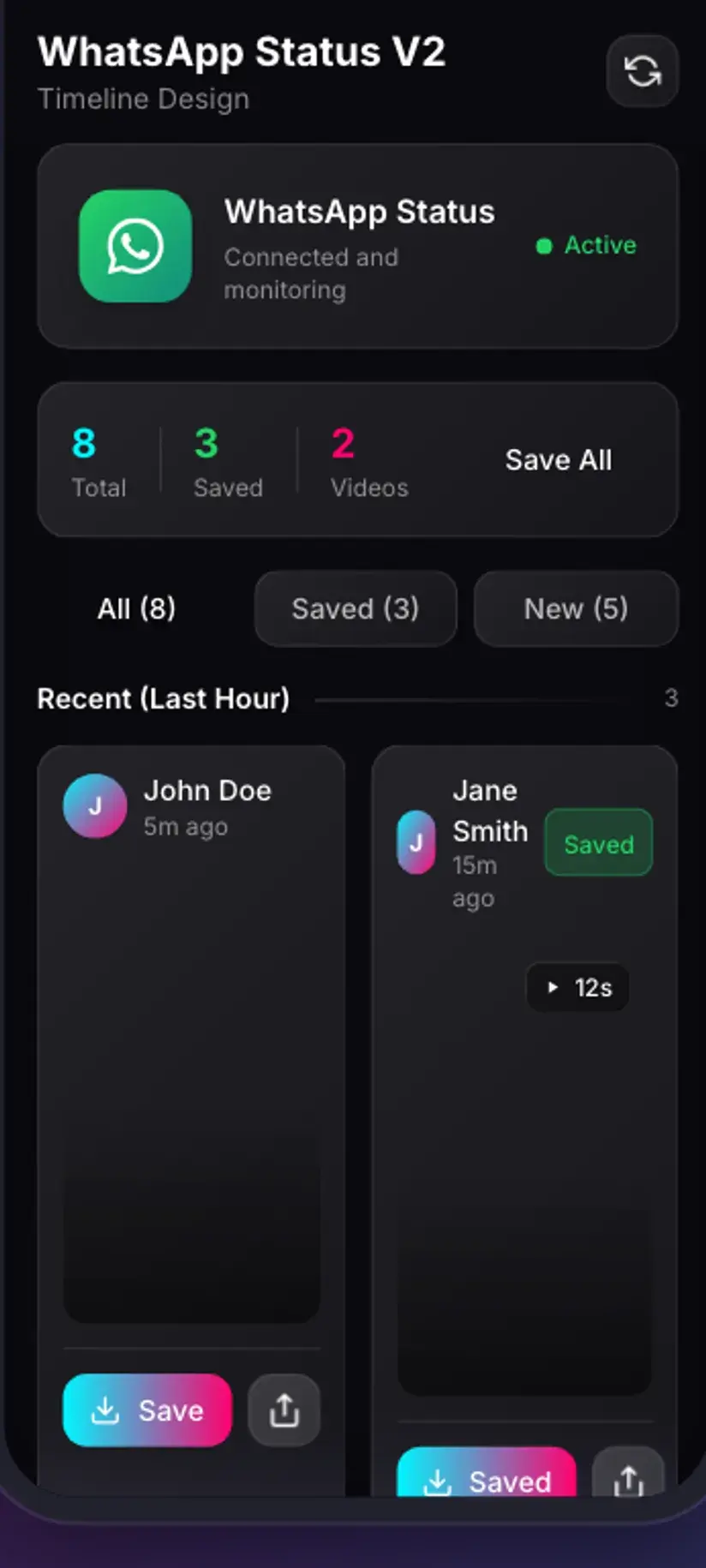
So a status saver is not a downloader in the sense the rest of this cluster means. There is no link to paste, no server to ask, no extraction to fail. Savvy reads that folder, shows you what is in it as a grid you can scroll, and copies whatever you tap into a normal, permanent location. That is the whole mechanic.
Two consequences follow, and both are useful. Saving works with no signal at all, because nothing is being fetched. And it is instant — a copy from one folder to another, at the speed your storage can write, not the speed your connection can download.
- No link — nothing to copy, nothing to paste, nothing to share across
- No sign-in — Savvy never asks for a WhatsApp account, and could not use one
- No network — works in flight mode, because the file is local already
- You must have watched it first — WhatsApp only writes a status to that folder when it plays it
Why this is the fastest thing in the app, and Instagram stories are not
It is worth putting these two side by side, because people reasonably assume that saving a WhatsApp status and saving an Instagram story are the same kind of task. They are not, and the difference is not Savvy's choice.
Instagram stories require an in-app Instagram sign-in. Stories are account-gated — there is no public permalink you can hand to a downloader — so Savvy has to hold a signed-in session of your own, captured through a separate login screen inside the app. That is a real account flow with real friction, and it exists because Instagram gives no other way in.
WhatsApp statuses require none of that, because the media is already yours to read. WhatsApp put it on your storage when you watched it. What Savvy needs is not credentials but permission — a one-time Android folder grant, described in the next section — and after that the status saver simply lists what is there.
That is why the WhatsApp tab is the quickest route to a saved file anywhere in the app: open it, tap the status, done. The slowest part is scrolling to find the right one.
- Instagram stories — need an in-app Instagram sign-in, a live connection, and a fetch that can fail
- WhatsApp statuses — need a folder permission once, then nothing but taps
- Both live on the same Stories screen in Savvy, on separate tabs, so the two flows never get confused
- A status you have not opened in WhatsApp yet will not appear — watch it first, then pull to refresh
The one-time folder grant, and why Android makes you do it
Modern Android does not let one app rummage through another app's media directory on a general storage permission. Access has to be granted to a specific folder, by you, through the system file picker. It is a genuine privacy control rather than a formality, and it is the reason status savers ask for something that looks fiddly the first time.
Savvy shows a sheet that walks the path out for you. Tap Give Access, and the Android picker opens. Navigate to Android → media → com.whatsapp → WhatsApp → Media, select the .Statuses folder, and tap Use this folder. If .Statuses is not in the list, turn on Show hidden files in the picker's overflow menu — the folder is hidden by name, not missing.
Pick the wrong folder and Savvy tells you so rather than showing you an empty grid: it validates that the folder you chose is really the status directory and refuses anything else. That check exists because selecting Media instead of .Statuses is by far the most common slip, and an unhelpful app would just show nothing and let you conclude it was broken.
You do this once per WhatsApp app. Grant it, and the permission persists — later visits to the tab go straight to the grid.
The grant is scoped to that one folder and nothing else. Savvy has no access to your chats, your contacts or your message backups, and the status directory contains no messages — only the media files WhatsApp cached while you watched other people's updates. That is a limit Android enforces, not a promise the app is making about itself.
The 24-hour window is not a marketing line
A WhatsApp status expires after 24 hours, and the cached copy on your phone goes with it. The .Statuses folder is a cache, not an archive — WhatsApp clears out files it no longer needs, and once a status has expired at WhatsApp's end there is no reason for it to keep the local copy.
This is the one thing that genuinely bites. Someone posts something you want; you think you will get to it later; a day passes; it is gone from the status ring and gone from the folder, and there is nothing any app can do about it. A status saver can only ever show you what is still cached.
The habit that solves it is unglamorous: save first, decide later. A saved status costs you a few megabytes and can be deleted in a tap from the Storage screen. An unsaved one that has aged out is unrecoverable except by asking the person to send it to you.
If a status you definitely watched is missing from the grid, the usual causes are ordinary. It may have expired. WhatsApp may have cleared the cache. Or it may simply not have loaded yet — pull to refresh, and give it a moment.
- Watched, still within 24 hours — in the folder, ready to save
- Watched, expired — cleared by WhatsApp, gone for good
- Never watched — never written to the folder in the first place
- Muted contacts count as unwatched until you actually open their update
Clearing WhatsApp's storage or cache from Android settings empties this folder too. If you are about to free up space and there are statuses you want, save them first — that operation does not ask twice.
Quality: there is no picker, and that is the right answer
Every link-based download in Savvy ends with a quality picker, because the source is offering several files and you have to choose one. Status saving has no picker at all, and the reason is worth understanding rather than filing as a missing feature.
A save here is a byte-for-byte copy. There is no re-fetch, so there is no second version to fetch. The file that lands in your Downloads folder is exactly the file WhatsApp already had — same resolution, same bitrate, same duration, same everything. Nothing is re-encoded, so nothing is lost in the copy either.
The ceiling, then, was set long before you got involved. WhatsApp compresses video hard on upload — that is how it moves billions of clips over patchy connections — and whatever survived that compression is what everyone watching the status sees, and what you save. No app can offer you an HD version of a status, because no HD version exists on your phone to offer.
Which quietly makes this the cheapest thing in the app as well. There is no HD tier to pay for and no resolution to upgrade to.
Status saves sit outside the SD-and-HD coin table that link downloads use, because there is no quality tier to price. A save draws a small handful of coins, and if your balance is short Savvy offers a short rewarded ad instead of refusing — coins are also earned by checking in daily. Premium removes both the ads and the arithmetic. The free tier is ad-supported through Unity Ads, which collects your device's advertising ID; the Savvy privacy policy sets that out.
Where saved statuses land, and what you do with them next
A saved status video goes to Downloads / Savvy / WhatsApp on your device, keeping the filename WhatsApp gave it. From that moment it is an ordinary MP4: it appears in your gallery, plays in any video app, and can be forwarded like any other file. Crucially, it is no longer subject to anyone's 24-hour clock.
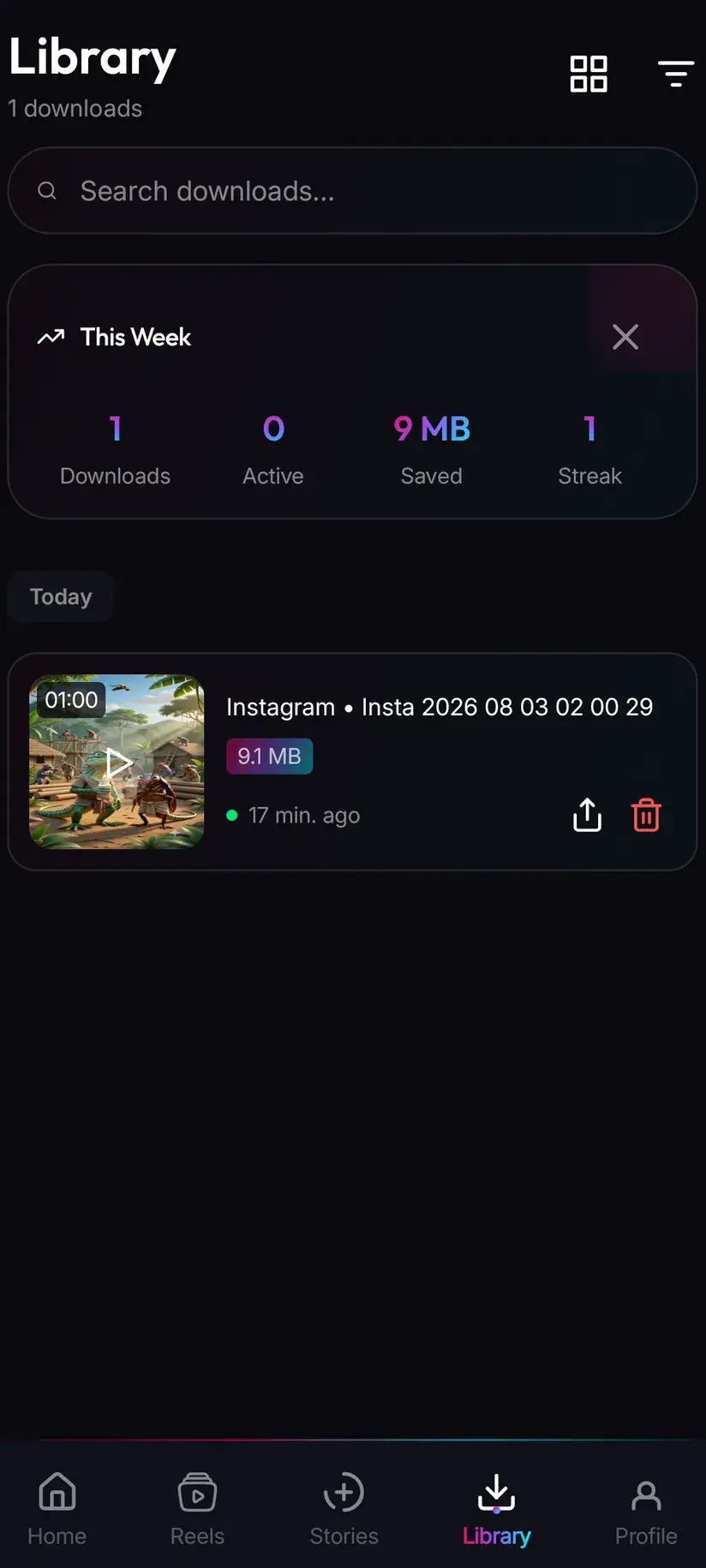
Inside Savvy, Library lists everything you have saved with search and filters, and Storage shows what each file is costing you in space with bulk delete alongside. Statuses accumulate faster than link downloads do — they are quick enough to save on impulse — so the Storage screen earns its place after a few weeks more than you would expect.
The saver also has a download all control for the current grid. It is genuinely useful on a day when someone has posted a run of clips you want, and genuinely wasteful used as a reflex. Ten statuses saved without looking is ten files to sort through later.
Then there is the part no app can decide for you. A status is something a person chose to show their contacts for a day. Keeping a copy of a friend's clip to rewatch, or your own status after you have lost the original, is unremarkable. Reposting someone's status elsewhere, or passing it to people they did not share it with, is a different act — one they would probably have opinions about, and one that can carry a copyright question too if the clip was not theirs to begin with.
Saving is not the same as having rights over what you saved. Is downloading videos legal? sets out where personal offline viewing ends and redistribution begins, and it is a short read worth doing once.
Procedure
How to save a WhatsApp status video
About a minute the first time, because of the folder grant. Seconds every time after that. No WhatsApp account is asked for and no Savvy account is needed.
Watch the status in WhatsApp first
Open the status you want in WhatsApp and let it play. This is not optional — WhatsApp only writes a status to your phone's storage when it plays it, so a status you have skipped past is not on the device for any app to find.
Open Savvy and go to the status saver
Install Savvy from Google Play, open it, and go to the Stories screen. Choose the WhatsApp tab. Instagram sits on its own tab and works completely differently, so make sure you are on the right one.
Grant folder access once
Tap Give Access to open the Android file picker. Navigate to Android, then media, then com.whatsapp, then WhatsApp, then Media, and select the .Statuses folder. Turn on Show hidden files if you cannot see it. Tap Use this folder. Savvy checks you picked the right folder and says so if you did not.
Find the status in the grid
Everything WhatsApp currently has cached appears as a grid, newest first, videos and photos together. Tap one to preview it full screen if you are not sure which is which. Pull down to refresh if something you just watched is not showing yet.
Save it
Tap the save control on the status. The copy is instant because nothing is being downloaded from anywhere. There is no quality choice to make: you get exactly the file WhatsApp already had.
Find it later
The file is in Downloads/Savvy/WhatsApp and appears in your gallery straight away. Inside Savvy it is listed under Library with search and filters, and the Storage screen shows what it is taking up if you want to clear a few later.
Frequently asked questions
- How do I download a WhatsApp status video?
- Watch it in WhatsApp first, then open Savvy, go to the Stories screen and choose the WhatsApp tab. The first time you will be asked to grant access to one folder through the Android file picker — Android, media, com.whatsapp, WhatsApp, Media, .Statuses. After that the status appears in a grid and one tap saves it. There is no link to paste and nothing is downloaded from the internet, because WhatsApp already wrote the file to your phone when you watched it.
- Do I need to sign in to WhatsApp inside the app?
- No, and there is no way to. A status saver never touches your WhatsApp account — it reads the folder WhatsApp writes cached status media into on your own device. This is the clearest difference from Instagram stories, which are account-gated and do require an in-app Instagram sign-in before anything can be saved. WhatsApp needs a folder permission; Instagram needs a login.
- Why can I only see statuses from the last 24 hours?
- Because that folder is a cache rather than an archive. A WhatsApp status expires after 24 hours, and WhatsApp clears the local copy along with it, so a status saver can only ever show what is still cached. Anything older is gone from your device and cannot be recovered by any app. The practical answer is to save on the day rather than intending to come back to it — a saved copy is a few megabytes and deletes in a tap.
- Why is a status I watched not showing in the app?
- Usually one of three things. It has expired and WhatsApp has cleared it. You skipped past it rather than letting it play, so it was never written to storage. Or it simply has not refreshed yet — pull down on the grid. One more possibility catches people out: clearing WhatsApp's storage or cache from Android settings empties the status folder too.
- Can I save a status in HD?
- There is no HD version to save. A status save is a byte-for-byte copy of the file already on your phone, so what you get is exactly what WhatsApp had — same resolution, same bitrate, nothing re-encoded and nothing lost. WhatsApp compresses video heavily on upload, and that compression happened before the clip ever reached you. No app can produce a higher-quality version of a status than the one everybody watching it saw.
- Does saving a status cost anything?
- Status saves sit outside the SD-and-HD coin table that link downloads use, because there is no quality tier to price. A save draws a small handful of coins, and if your balance is short the app offers a short rewarded ad rather than refusing. Coins are also earned by checking in daily. A Premium subscription removes the ads and the arithmetic together.
- Will the person know I saved their status?
- WhatsApp tells people who has viewed their status, and viewing is what you have already done in WhatsApp itself. The copy afterwards happens entirely on your own device, between two folders, with no network involved — there is nothing for WhatsApp to report even if it wanted to. Worth separating that technical answer from the social one, though: whether to keep or reshare something a person put up for a day is a courtesy question rather than a technical one.
- Where do saved WhatsApp statuses go on my phone?
- To Downloads/Savvy/WhatsApp, keeping the original filename. It is an ordinary file from there — it shows up in your gallery and plays anywhere. Inside Savvy the Library screen lists everything you have saved with search and filters, and the Storage screen shows what each one takes up so you can clear several at once. WhatsApp Business statuses save separately, to their own folder.