How do I save a photo from someone's WhatsApp status?
Most people screenshot it, crop the notification bar off and accept the result — which is a shame, because the actual image file has been sitting in your phone's storage the whole time.
- Guide
- How-to
- Read
- 11 min
- Language
- English
Steps checked against the Savvy Android app on
Devikon Research Team
The image is a file on your phone, not just something on screen
When you open a photo status, WhatsApp fetches the image, writes it into a folder on your own storage, and displays it from there. It is not a stream. By the time the picture has appeared on your screen, a complete JPG or PNG of it exists on your device.
That folder is Android / media / com.whatsapp / WhatsApp / Media / .Statuses. The leading dot on the last name marks it hidden, which is why it has never turned up in your gallery and why most people have no idea their phone has been quietly collecting other people's status images all week.
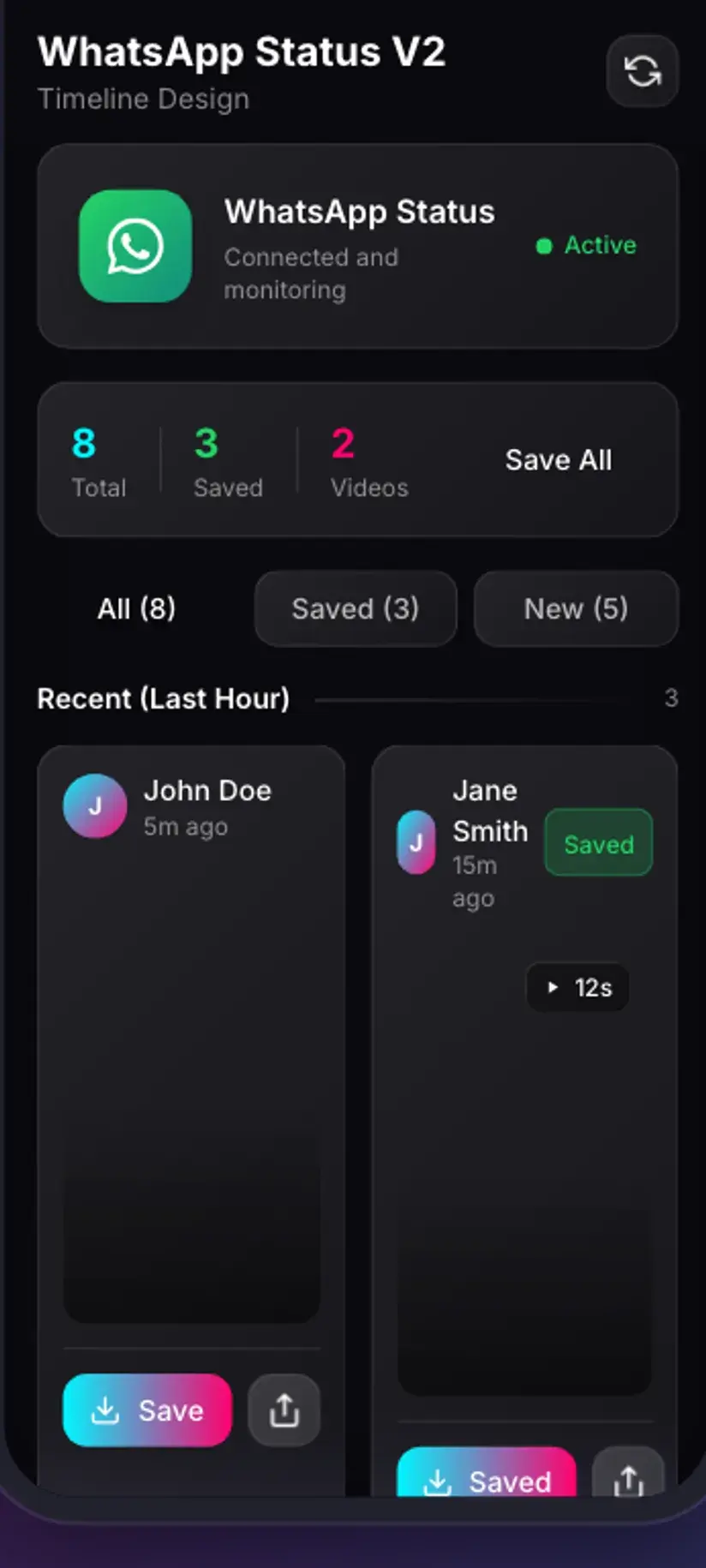
Savvy's status saver reads that folder and lays out what is in it as a grid — photos and videos together, newest first. Tapping one copies it somewhere permanent. There is no link involved, no server asked, and no WhatsApp account signed into, because the file being copied is one your phone downloaded for its own use minutes ago.
It also means saving works with no connection at all. Nothing is being fetched. A photo status saves as fast as your storage can write a couple of megabytes, in flight mode, on the underground, anywhere.
- Images picked up — .jpg, .jpeg and .png, which covers everything WhatsApp caches
- Listed together with video — one grid, not a separate photos screen
- No account, no link, no signal — the file is already local
- You must have opened it — WhatsApp writes a status to storage when it displays it, not before
Screenshot versus save, honestly compared
This is the real question behind the search, so it deserves a straight answer rather than a sales pitch. Screenshotting a status photo works. It is not wrong, and for a quick reference — an address, a menu, a phone number someone posted — it is completely fine.
What it costs you is precision. A screenshot is a picture of your screen, not the image. It is captured at your display's resolution rather than the picture's, re-encoded by the screenshot tool, and it arrives with the status bar, the poster's name, the timestamp and the reply box baked into the frame. You then crop, which loses a little more, and what you keep is a re-photograph of the original at whatever your phone's screen could show of it.
A save is a byte-for-byte copy of the file itself. Same pixels, same dimensions, no interface furniture, no re-encoding step. If the photo is ever going to be printed, cropped further, edited, or looked at on anything larger than a phone, the difference is visible immediately.
There is one case where the screenshot wins outright, and it is covered further down: text-only statuses, which are not image files at all.
- Screenshot — your screen's resolution, re-encoded, with the WhatsApp interface in the frame
- Save — the original file, original dimensions, nothing overlaid and nothing re-compressed
- Cropping a screenshot to remove the status bar throws away pixels a save would have kept
- For a quick note-to-self a screenshot is genuinely fine — the gap only matters if the image matters
One folder permission, granted once
Android will not let an app read another app's media directory on a general storage permission. You have to point it at the specific folder yourself, through the system file picker. That is a real privacy boundary, and it is why every status saver asks for something that looks unnecessarily fiddly the first time you meet it.
Savvy walks the path out on screen. Tap Give Access, and the Android picker opens. Go to Android → media → com.whatsapp → WhatsApp → Media, select .Statuses, and tap Use this folder. If you cannot see .Statuses, switch on Show hidden files in the picker's menu — it is hidden by name, not absent.
Choosing the wrong folder is the usual stumble, and selecting Media one level up is the most common version of it. Savvy validates what you picked rather than silently showing an empty grid, so if you land in the wrong place you get told which folder to select instead of concluding the app does not work.
Granted once, it persists. Every later visit opens straight onto the grid.
That grant covers one folder and nothing beyond it. There are no messages in the status directory — only media files WhatsApp cached while displaying other people's updates — and Savvy has no route to your chats, contacts or backups. Android enforces the scope; it is not a promise the app is making about its own good behaviour.
What will never appear in the grid, and why
Two absences catch people out, and both have honest explanations rather than fixes.
Text statuses are not files. When someone posts words on a coloured background, WhatsApp does not create an image — it stores the text and the background choice, and draws the result on your screen each time. There is nothing to write into a media folder, so nothing appears in any status saver, ever. This is the one case where a screenshot is not a compromise but the only option available.
Expired statuses are gone. The folder is a cache, not an archive. A status lasts 24 hours at WhatsApp's end, and the local copy is cleared out along with it. Whatever you did not save on the day cannot be retrieved by any app, because it is no longer on your phone to retrieve.
There is a duller third cause too. A status you scrolled past without opening was never written to storage in the first place, so it is not missing — it was never there. Open it in WhatsApp, come back, and pull to refresh.
- Text-only statuses — rendered live, never stored as an image, so screenshot is the only route
- Statuses older than 24 hours — cleared by WhatsApp along with the status itself
- Statuses you skipped — never downloaded, so never in the folder
- After clearing WhatsApp's cache in Android settings — the folder is emptied along with everything else
The 24-hour clock is the thing that actually loses people photos. Save on the day and decide later — a status image is a couple of megabytes and deletes in one tap from the Storage screen. An expired one is simply gone, short of asking the person to send it again.
What the saved photo keeps, and what it lost long before you
The copy preserves exactly what was on your phone: same dimensions, same compression, same file. Nothing is re-encoded on the way out, so the save adds no loss of its own.
The compression that did happen happened at the other end. WhatsApp resizes and re-compresses images on upload — that is how it moves photos over weak connections at scale — so a status image is already a reduced version of whatever the poster's camera produced. What everyone viewing the status sees is what you save. A downloader cannot restore detail that was discarded before the file ever reached your device, and any app claiming to enhance a status photo is generating new pixels rather than recovering old ones.
The same upload step generally strips the metadata the original carried — camera model, settings, and any location the photo was tagged with. So a saved status photo tends to arrive clean of that, which is worth knowing in both directions: useful if you were worried about it, unhelpful if you were hoping to read it.
The upside of all this is that there is no quality decision to make. No picker, no tiers, no upgrade to weigh.
Status saves sit outside the SD-and-HD coin table the link downloads use, because there is no second version to price. A save draws a small handful of coins, and if the balance is short Savvy offers a short rewarded ad rather than refusing — coins are earned by checking in daily as well as bought. Premium removes the ads and the arithmetic together. The free tier is ad-supported through Unity Ads, which collects the device advertising ID; the Savvy privacy policy covers that.
Where the photo lands, and the part that is not technical
A saved status photo goes to Downloads / Savvy / WhatsApp, under the filename WhatsApp gave it. From there it is an ordinary image: your gallery picks it up, any editor opens it, and it is no longer on anyone's 24-hour timer.
In the app, Library lists everything you have saved with search and filters, and Storage shows what each file occupies with bulk delete beside it. Photos are small individually and quietly numerous in aggregate, especially if you use the grid's download all control on a day someone posted a run of pictures. That control is a real convenience and a real way to end up with forty images you never look at.
And then the human part. A status is something a person chose to show their contacts for one day. Keeping a photo of your own, or a picture a friend posted that you want to hold onto, is completely ordinary. Passing it to people they did not share it with, or reposting it somewhere public, is a different act — and if the image was not theirs to begin with, a copyright question rides along with the etiquette one.
Having a copy is not the same as having rights to it. Is downloading videos legal? sets out where personal keeping ends and redistribution starts — the same line applies to images.
Procedure
How to save a WhatsApp status photo
A minute the first time because of the folder grant, then seconds. No WhatsApp sign-in is involved and no Savvy account is needed.
Open the status in WhatsApp
View the photo status you want. WhatsApp only writes a status to your phone's storage when it displays it, so one you scrolled past is not on the device for anything to find.
Open Savvy and pick the WhatsApp tab
Install Savvy from Google Play, open it and go to the Stories screen, then the WhatsApp tab. Instagram has its own tab and works differently — it needs an in-app Instagram sign-in, where WhatsApp needs only a folder permission.
Grant access to the status folder, once
Tap Give Access to open the Android file picker. Navigate through Android, media, com.whatsapp, WhatsApp, Media, and select .Statuses. Turn on Show hidden files if it is not listed. Tap Use this folder. Savvy checks the folder is the right one and tells you if it is not.
Find the photo in the grid
Cached statuses appear newest first, photos and videos in the same grid. Tap one to see it full screen if you are not sure which is which, and pull down to refresh if something you just viewed has not appeared yet.
Save it
Tap save on the photo. The copy is immediate because nothing is downloading — it is a file move between two folders. There is no quality choice, because the file you get is the file WhatsApp already had.
Open it from your gallery or from Library
The image is in Downloads/Savvy/WhatsApp and shows up in your gallery straight away. Inside Savvy it is listed under Library with search and filters, and Storage shows what your saved statuses are taking up when you want to clear some.
Frequently asked questions
- How do I save a WhatsApp status photo instead of screenshotting it?
- View the status in WhatsApp first, then open Savvy, go to Stories and pick the WhatsApp tab. The first time you grant access to one folder through the Android picker — Android, media, com.whatsapp, WhatsApp, Media, .Statuses — and after that every cached status shows in a grid where one tap saves it. You get the actual image file rather than a picture of your screen, at its original dimensions and with no interface elements in the frame.
- Is a saved status photo better quality than a screenshot?
- Yes, though the reason is worth being precise about. A screenshot captures your display, so it is limited to your screen's resolution, re-encoded by the screenshot tool, and includes the status bar, the poster's name and the reply box until you crop them away. A save copies the file itself, byte for byte, at whatever size WhatsApp stored it. Neither can undo the compression WhatsApp applied when the photo was uploaded — but the save adds no further loss of its own.
- Why can I not save text statuses?
- Because they are not files. A coloured-background text status is stored as text plus a style, and drawn on your screen each time it is displayed. Nothing is written into the media folder, so nothing appears in a status saver — not because the app skips them, but because there is no image on your device to copy. Screenshotting is the only way to keep one, and in that specific case it is not a compromise at all.
- Do I need to sign in to WhatsApp for this?
- No, and there is no sign-in to give. A status saver never touches your WhatsApp account; it reads the folder WhatsApp writes cached status media into on your own phone. That is the sharp difference from Instagram stories, which are account-gated and do need an in-app Instagram sign-in before anything can be fetched. WhatsApp asks for a folder permission, not a login.
- Why do older status photos disappear?
- The folder is a cache rather than an archive. A status expires after 24 hours at WhatsApp's end, and the local copy is cleared along with it, so a saver can only ever list what is still there. Anything older is off your device entirely and no app can bring it back. Clearing WhatsApp's storage from Android settings has the same effect immediately, so save anything you care about before doing that.
- Does saving a status photo cost coins?
- Status saves fall outside the SD-and-HD coin table used for link downloads, because there is no quality tier to charge for. A save draws a small handful of coins, and when the balance is short the app offers a short rewarded ad instead of refusing. Coins can also be earned by checking in daily. Premium removes the ads and the coin arithmetic together.
- Can the person tell I saved their status photo?
- WhatsApp reports who viewed a status, and viewing already happened when you opened it in WhatsApp. The save itself is a copy between two folders on your own device with no network involved, so there is nothing to report. The social question is separate from the technical one, though — a status is something someone chose to show for a day, and keeping or resharing it is a courtesy call rather than a feature.
- Where are saved status photos stored?
- In Downloads/Savvy/WhatsApp, under the filename WhatsApp used. Your gallery picks them up like any other image and any editor will open them. Inside Savvy, Library lists everything saved with search and filters, and Storage shows what each file occupies with bulk delete for clearing several at once. WhatsApp Business statuses go to their own separate folder.