How do I download an Instagram reel?
Instagram gives a reel no save button, so the whole job comes down to getting its link into something that can read it — and one of the two ways of doing that needs no typing at all.
- Guide
- How-to
- Read
- 13 min
- Language
- English
Steps checked against the Savvy Android app on
Devikon Research Team
Share the reel across — do not copy and paste it
There are two ways to get a reel into Savvy, and they are not equally quick. Almost everyone reaches for the slower one.
The fast route is Instagram's own share sheet. On the reel, tap the paper-plane share icon, choose Share to… and pick Savvy from the list of apps. That hands the link over directly, and the download starts on its own — Savvy fills its own link field and fires the download without waiting for you. You never see the home screen, never type anything, and never touch the clipboard.
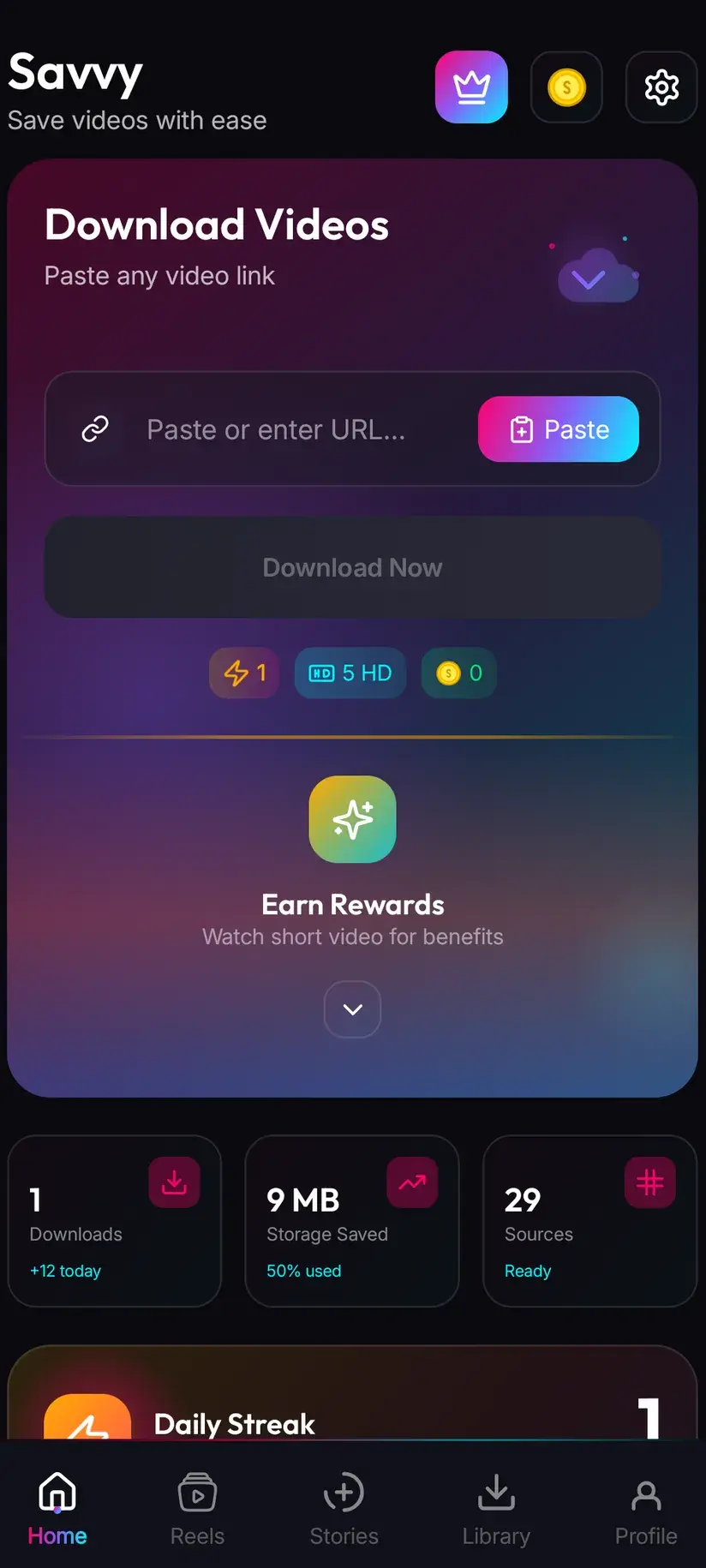
The slower route is copy-and-paste. Tap share, choose Copy link, open Savvy, tap the Paste button beside the link field, then tap Download. Worth being precise about that middle step, because a lot of downloader apps claim otherwise: Savvy does not watch your clipboard in the background and it does not start a download the moment you switch to it. Paste is an ordinary button. Tapping it reads the clipboard once, checks the link is one it recognises, and drops it into the field. Nothing else happens until you tap Download.
So the choice is one tap versus four. Use the share sheet unless you already have a link sitting in a message or a note, in which case pasting is the only option you have.
- Share to Savvy — link filled and download started automatically
- Copy link, then Paste — tap Paste to fill the field, then tap Download yourself
- A link pasted from WhatsApp, a note or a browser address bar works exactly the same as one copied from Instagram
- If Paste says the link is not supported, what you copied is probably a profile or a search URL rather than a reel's permalink
What quality you get, and what it costs
This is where downloader apps are usually vaguest, so here is the whole of it.
After a link resolves, Savvy shows you the qualities that reel is actually available in and lets you pick. Standard definition, up to 480p, is free — it comes out of a daily allowance rather than out of any balance, so on an ordinary day you can save reels at SD and never spend anything.
The split is worth understanding rather than memorising. The free tier is where it is because the overwhelming majority of reels are watched back on a phone screen, and 480p on a phone is perfectly serviceable; the paid tiers are the large files. Which makes the sensible default leaving the picker at SD unless you have a specific reason — a large screen, or a clip you intend to edit — to pay for more.
Above 480p the cost is in coins, Savvy's in-app currency:
- SD video, up to 480p — free, from your daily allowance
- HD and Full HD video — 10 coins, or one HD credit if you have one
- 2K video — 15 coins
- 4K video — 20 coins
- Images and audio — 5 coins
Coins are earned as well as bought: watching a short rewarded ad or checking in daily both add to your balance, and the Coin Shop lists both routes alongside the packs. A Premium subscription is the other way out — it removes ads and lifts the download limits, so the coin arithmetic stops applying. The free tier is ad-supported through Unity Ads, which collects your device's advertising ID; that is set out in the Savvy privacy policy.
Why the HD you paid for may not look like HD
A quality picker can only offer what exists. Downloading cannot add detail that was never uploaded, and Instagram is unusually rough on reels in this respect — it re-encodes what creators upload, and it re-encodes harder when the original file was large, when the connection was poor at upload time, or when the account is small.
The practical consequence: if a reel was published from a compressed 720p export, choosing a higher tier gets you a bigger file of the same picture, not a better one. Before spending coins on 2K or 4K for a reel, look at what the picker actually lists. If the top option offered is 720p, that is the ceiling for that reel and no app can raise it.
Where the higher tiers earn their keep is content that was genuinely shot and published at that resolution — and there, the difference on a large screen is obvious.
Watermarks: be sceptical of anything promising none
Savvy does not add a watermark of its own. Whether a saved reel carries one is decided entirely by the source, before the file ever reaches a downloader.
Instagram does not stamp a visible watermark on a native reel the way TikTok stamps a spinning username on an export. What it does do is carry over whatever is already burned into the video — a creator's handle, a brand logo, a TikTok watermark on a reel that was cross-posted from TikTok in the first place. All of those are part of the picture. They are pixels in the frame, not metadata, and removing them means re-encoding and cropping the video rather than downloading it differently.
So treat any app promising a watermark-free Instagram reel with suspicion. It can only mean one of two things: the reel had no watermark to begin with, or the file has been cropped and re-encoded, which costs you picture quality at the edges.
There is one platform where a genuinely watermark-free save is possible, and it is TikTok — a handful of TikTok-specialist providers can request the unstamped source. That is a TikTok-only behaviour. It does not apply to Instagram, and no guide here will tell you otherwise.
Public reels, private accounts, and stories
A reel you can open from a link in a browser, signed out, is a public reel. Those need nothing from you — no Instagram account, no sign-in inside Savvy, no permissions beyond storage. Paste or share the link and it resolves.
Instagram stories are different, and it is worth knowing why so you are not confused when one route asks for something the other does not. Stories are not addressable by a public permalink in the same way, so saving them means Savvy holding a signed-in Instagram session of your own — an in-app login that captures the session cookies and user agent your account would normally send. That is a separate screen with a separate flow. Reels from a public link never go near it.
What neither route does is get you into an account you cannot already see. A private account's reels are private at Instagram's end; a downloader reads the same page your browser reads and gets the same refusal. Anyone claiming otherwise is describing something that does not work.
The more useful question is not what is technically possible but what you are entitled to keep. Saving your own reels, content you have permission to reuse, or a public clip you want to rewatch offline is ordinary. Reposting someone else's work as your own, or redistributing it commercially, is not — and that is a copyright question, not an app question.
Downloading is not the same thing as having rights to what you downloaded. Personal offline viewing sits in very different territory from reposting or monetising. Is downloading videos legal? sets out where the line usually falls, and it is worth reading once before you build a habit.
Where the reel ends up, and finding it again
Finished downloads land in your device's Downloads folder, in a Savvy directory, sorted into a subfolder per platform — so an Instagram reel goes to Downloads / Savvy / Instagram. It is an ordinary MP4 from that point on: it appears in your gallery, plays in any video app, and can be shared onward like any other file.
Inside the app, Library is the faster way back to it. Everything you have saved is listed there with search and filters, so finding one reel from three weeks ago does not mean scrolling a gallery full of screenshots. The Storage screen is the companion to it — it shows what each download is costing you in space and lets you clear several at once, which matters more than people expect once a few dozen HD reels have accumulated.
If you save reels in volume, there is a third route that skips links entirely: Savvy carries its own in-app reels feed. It is a curated feed inside the app rather than a view of your Instagram account, and a save from it is queued immediately — no link to resolve, no quality picker, just a tap. Worth knowing it exists before you paste your fiftieth URL.

Procedure
How to download an Instagram reel
Under a minute for the first one. You do not need an Instagram account for a public reel, and you do not need a Savvy account at all.
Install Savvy and allow storage access
Install Savvy from Google Play and open it. Grant the storage permission when it is asked for — it is what lets a finished download be written somewhere your gallery can see, rather than staying trapped inside the app.
Open the reel in Instagram
Find the reel you want in the Instagram app or in a browser. Play it once to confirm it is the right one and that it is publicly viewable.
Send the link to Savvy
Tap the paper-plane share icon on the reel. Choose Share to… and pick Savvy — the link is handed over and the download starts on its own. If Savvy is not offered in the share sheet, choose Copy link instead and continue with the next step.
If you copied instead, tap Paste and then Download
Open Savvy and tap the Paste button beside the link field. That fills the field with what you copied and checks it is a link the app recognises — it does not start anything. Tap Download afterwards to begin.
Choose a quality
Savvy lists the qualities that reel is genuinely available in. SD up to 480p is free from your daily allowance; HD and above spend coins. Pick the highest option actually listed rather than assuming a higher tier exists.
Let it finish, then check Library
Progress shows in the app. When it completes, the file is in Downloads/Savvy/Instagram on your device and listed under Library inside the app, where search and filters make it easy to find later.
Frequently asked questions
- How do I download an Instagram reel to my phone?
- The quickest way is Instagram's own share sheet: tap the paper-plane icon on the reel, choose Share to… and pick Savvy. The link is handed over and the download starts on its own — nothing to type. If Savvy is not in the share sheet, choose Copy link instead, open Savvy, tap the Paste button to fill the link field, then tap Download. Paste only fills the field; it does not start the download by itself.
- Is downloading Instagram reels free?
- Standard definition, up to 480p, is free — it comes out of a daily allowance rather than any balance, so ordinary everyday saving costs nothing. Above 480p you spend coins: 10 for HD or Full HD (or one HD credit), 15 for 2K, 20 for 4K, and 5 for an image or an audio-only file. Coins are earned free by watching a short rewarded ad or checking in daily, or bought in packs. Premium removes the ads and lifts the limits instead.
- Can I download Instagram reels in HD?
- Yes, where the reel exists in HD. After a link resolves, Savvy lists the qualities that particular reel is actually available in, and HD or Full HD costs 10 coins or one HD credit. The caveat matters more than the price: Instagram re-encodes what creators upload, so plenty of reels top out well below HD. Downloading cannot add detail that was never there, so check what the picker lists before spending on a higher tier.
- Will the downloaded reel have a watermark?
- Savvy does not add one. Whether a saved file carries a watermark is decided by the source — Instagram does not stamp native reels the way TikTok stamps exports, but anything already burned into the video travels with it, including a creator's handle, a brand logo, or a TikTok watermark on a reel that was cross-posted. Those are pixels in the frame. Be wary of any app promising a watermark-free Instagram reel; removing a burned-in mark means cropping and re-encoding, which costs you picture quality.
- Do I need an Instagram account to download a reel?
- Not for a public reel. If the link opens in a signed-out browser, Savvy can read it with no Instagram account and no sign-in of any kind. Instagram stories are the exception — they need Savvy to hold a signed-in Instagram session of your own, captured through a separate in-app login. Reels from a public link never touch that flow. You also do not need a Savvy account: the core app works without signing up for anything.
- Can I download reels from a private account?
- No. A private account's reels are private at Instagram's end, and a downloader reads the same page your browser reads — it gets the same refusal. No app can get you into an account you cannot already see, whatever it advertises. Think of these tools as saving content you already have the right to save: your own reels, content you have permission to use, or public clips you want to rewatch offline.
- Where do downloaded reels save on my phone?
- In your device's Downloads folder, under a Savvy directory sorted by platform — so Instagram reels land in Downloads/Savvy/Instagram. It is an ordinary MP4 from there: it shows up in your gallery and plays in any video app. Inside Savvy, the Library screen lists everything you have saved with search and filters, and the Storage screen shows what each download takes up so you can clear several at once.
- Why does a reel link sometimes fail to download?
- Usually because Instagram has changed the shape of the page it serves. Savvy tries an Instagram link against five extraction providers in order and falls through to the next automatically, so a failure means the whole chain came back empty rather than one attempt going wrong — retrying immediately rarely helps. Waiting and trying the same link later often does. If the reel has been deleted, or was never publicly viewable, it will not resolve at all, and that is the source rather than the app.