How do I download a video from Instagram?
Not every Instagram video is a reel, and the difference shows up in the link you copied — which is the fastest way to work out what you are dealing with.
- Guide
- How-to
- Read
- 12 min
- Language
- English
Steps checked against the Savvy Android app on
Devikon Research Team
Look at the link: /p/, /reel/ and /tv/ are three different things
Instagram has accumulated several kinds of video over the years, and although they now look similar in the app, they still carry different addresses. The path in the link tells you which you have, and that is worth thirty seconds because it explains most of what follows.
/p/ is an ordinary feed post. It might be a single video, a single photograph, or a carousel mixing both. This is the general case and the one most people mean by an Instagram video.
/reel/ or /reels/ is a reel: short, vertical, published into the reels surface with its own audio attribution. Reels have their own quirks, and downloading an Instagram reel covers them.
/tv/ is the fossil. Instagram once ran IGTV as a separate product for long videos, retired it as a brand, and folded long video into the ordinary feed. Old IGTV links still exist in the wild and still point at real posts, so they are worth recognising rather than assuming they are broken.
Savvy treats all three as Instagram links and hands them to the same extraction chain. You do not have to classify anything yourself. What the link shape actually predicts is the *result* — the shape of the video, what qualities are on offer, and whether you are about to get one item or several.
- /p/ — feed post: one video, one photo, or a carousel of up to ten items
- /reel/ or /reels/ — a reel, short and vertical
- /tv/ — a legacy IGTV link, now an ordinary long feed video
- /stories/ — a story, which does not work by link at all and needs an account connection instead
- A profile, hashtag or search URL has no single piece of media behind it, so there is nothing for the chain to return
Getting the link in, in one tap rather than four
Two routes exist and they are not equally quick, so it is worth knowing which you are using.
The fast one is Instagram's share sheet. On the post, tap the paper-plane share icon, choose Share to… and pick Savvy. The link is handed over and the download begins on its own — you never see the link field and never type anything.
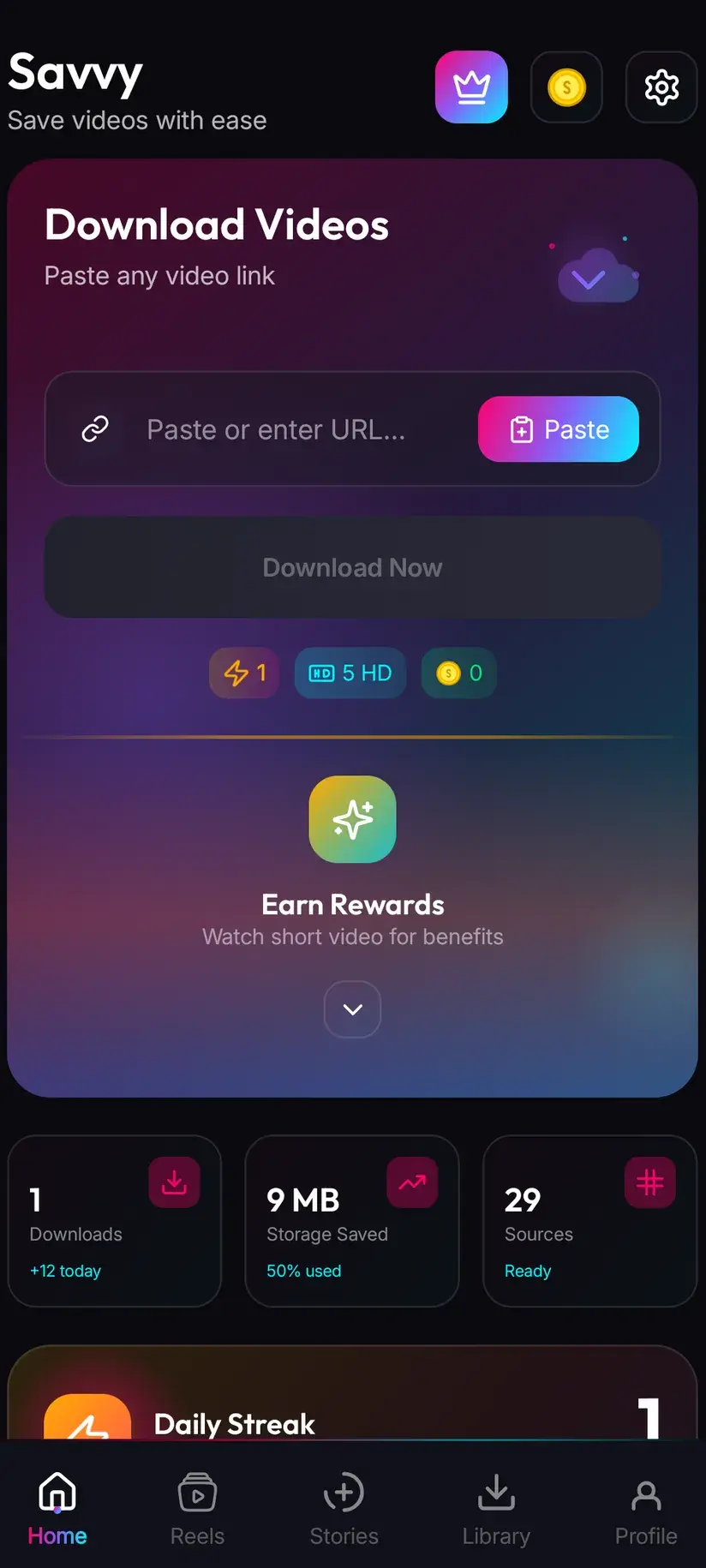
The slower one is copy-and-paste: tap share, choose Copy link, open Savvy, tap the Paste button beside the link field, then tap Download. Be precise about that middle step, because many downloader apps imply otherwise. Savvy does not read your clipboard in the background, and switching to the app does not start anything. Paste is an ordinary button that reads the clipboard once, checks the link is recognised, and fills the field. Nothing happens until you tap Download.
Use the share sheet unless the link is already sitting in a message, a note or a browser address bar — in which case pasting is the only route available, and it works exactly the same as a link copied from Instagram itself.
Why a feed video behaves differently from a reel
The distinction is not cosmetic. A reel is a short vertical clip published into a feed built for rapid consumption, and Instagram compresses it accordingly. A feed video is a post, can run considerably longer, and is not locked to a vertical frame — landscape and square feed videos are common, particularly on older posts and brand accounts.
That has a direct consequence for what you get. A vertical video and a landscape video described as the same quality are not the same amount of picture. A vertical clip labelled 1080 is 1080 pixels across its narrow dimension; a landscape one is 1080 across its tall dimension and considerably wider. Both are honestly labelled. They are simply different files, and it explains why one save looks noticeably sharper on a laptop than another at the same nominal tier.
Longer videos add a second wrinkle. The longer a video runs, the harder Instagram compresses it to keep the file manageable, so a twenty-minute post is often visibly softer than a forty-second one from the same account. That is a property of the source, decided before any downloader was involved.
There is one thing feed videos are frequently better at than reels: they are more likely to have been uploaded from a proper edit rather than shot in the app, which means the material behind them was often higher quality to begin with. Whether that survives Instagram's re-encode is the whole question, and the quality picker answers it.
The word HD on a downloader is a tier name, not a promise about the source. What actually determines how good a saved video looks is what the poster uploaded and how hard Instagram re-encoded it — a downloader copies the file it is given and cannot add detail that was never there.
The quality picker, and what it actually costs
Once a link resolves, Savvy lists the qualities that specific post is genuinely available in and lets you choose. The list is not a menu of aspirations — it reflects what Instagram is serving for that video, which is why it differs from post to post.
Standard definition, up to 480p, is free. It comes out of a daily allowance rather than any balance, so ordinary everyday saving costs nothing at all. Above 480p, the cost is in coins:
- SD video, up to 480p — free, from your daily allowance
- HD and Full HD video — 10 coins, or one HD credit if you have one
- 2K video — 15 coins
- 4K video — 20 coins
- Images and audio — 5 coins
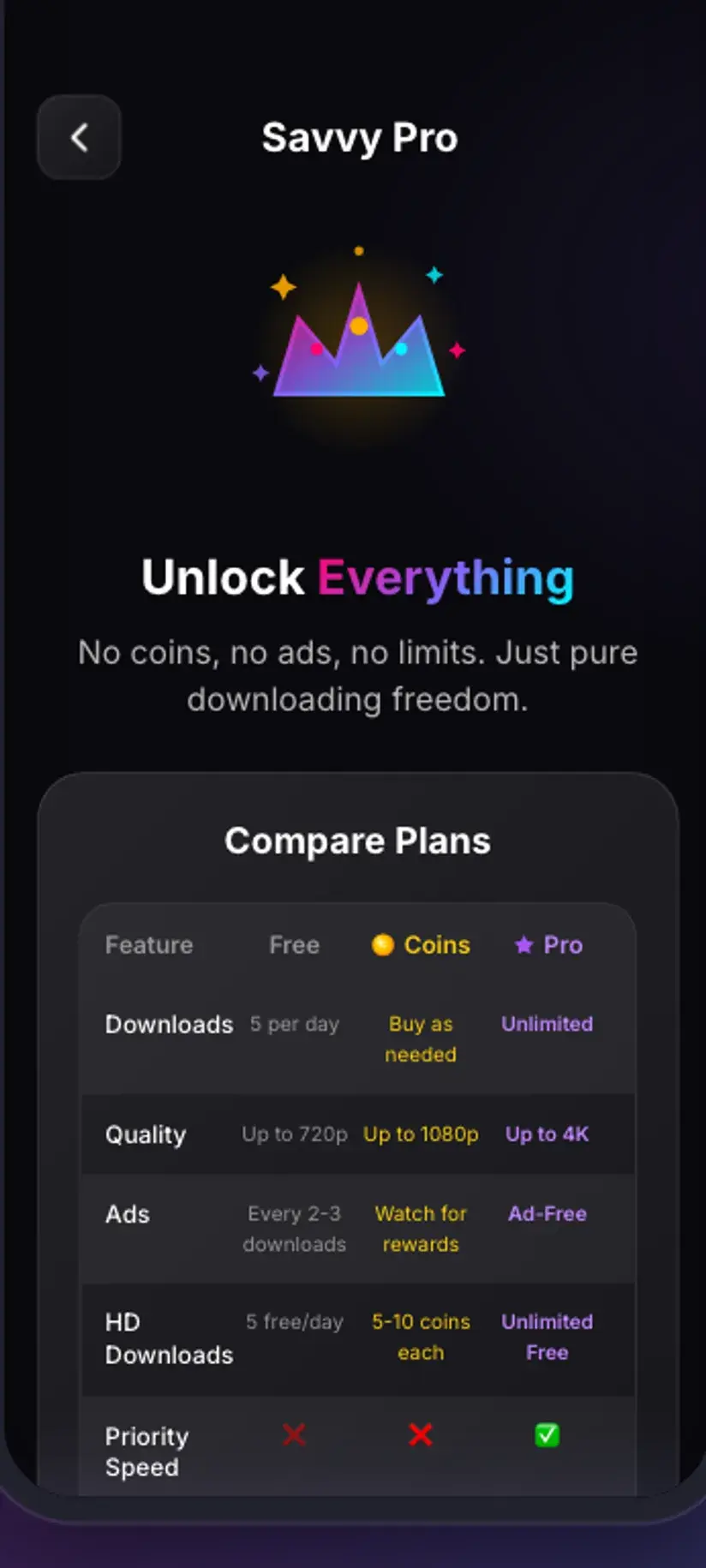
Before spending on a higher tier, read the list rather than assuming. If the top option offered is 720p, that is the ceiling for that post and no setting can raise it — 2K and 4K only appear where the source genuinely exists at that size. Coins are earned free through the daily check-in and short rewarded ads as well as bought, and a Premium subscription removes the ads and lifts the limits so the arithmetic stops applying.
Carousels: one link, several files
A /p/ link is not necessarily one item. Instagram carousels hold up to ten pieces of media, and they mix freely — three photographs, then a video, then four more photographs is an entirely normal post. Only the first item is visible in a thumbnail, so the link you copied may contain considerably more than you expected.
The billing follows the media rather than the post. Each item is priced as what it is: a video at the video rates above, a photograph at the flat image rate of 5 coins. So a carousel of eight photographs and one HD video is not a single charge, and it is worth looking at what a carousel contains before saving all of it.
In practice most people want one specific item out of a carousel rather than the set. Check what the post actually holds after it resolves, and take what you need.
If the post is entirely photographs, the video guidance above does not apply and downloading Instagram photos is the more useful page — carousels and image resolution are covered there in full.
Audio only, and when it makes sense
Sometimes the video is not the point. Savvy can save the audio from an Instagram video on its own, at the flat 5 coin rate — the same as an image — which is materially cheaper than pulling an HD video you intend to discard.
This is genuinely useful for interviews, talks, recipe narration and anything you want to listen to rather than watch, and the file is a fraction of the size. It is worth remembering before you spend 10 coins on HD for something you are going to play with the screen off.
The same caution applies as everywhere else: audio extracted from a heavily compressed video is heavily compressed audio. It will be perfectly listenable and it will not be a master recording.
And the same entitlement question applies with more force than usual. Music inside an Instagram video is very often licensed to Instagram rather than owned by the poster, so extracting it is not the same as being free to publish or monetise it.
Downloading and having rights to what you downloaded are separate questions, and audio is where they diverge fastest — personal offline listening sits in very different territory from reuse in your own content. Is downloading videos legal? sets out where the line usually falls.
When a link will not resolve, and where files end up
Instagram reshapes its pages regularly, and a technique that read them cleanly last month can come back empty today. Savvy handles that by not depending on one technique: an Instagram link is tried against five extraction providers in priority order, falling through automatically. You see a single spinner rather than five attempts.
The useful consequence is diagnostic. A failure means the whole chain came back empty, not that one attempt went wrong, so tapping Download again immediately almost never helps. Waiting and retrying the same link later often does, because both the providers and Instagram's pages change over time.
Some failures are not temporary at all. A deleted post will not resolve, because there is nothing to resolve to. A post from a private account will not resolve either — a downloader reads the same page your browser reads and receives the same refusal, and no app can get you into an account you cannot already see. And a link to a profile, a hashtag or a search result has no single video behind it, so there is nothing for the chain to return.
Finished downloads land in your device's Downloads folder, in a Savvy directory sorted by platform — so Downloads / Savvy / Instagram. From there it is an ordinary file that appears in your gallery and plays anywhere. Inside the app, Library lists everything with search and filters, and Storage shows what each download is costing you in space, which starts to matter once a few long HD videos have accumulated.
- Retry later, not immediately — the whole provider chain has already been tried
- Deleted or private — a permanent no, and a property of the source rather than the app
- Profile, hashtag or search URL — no single piece of media behind it
- Downloads / Savvy / Instagram — where saved files land on the device
Procedure
How to download an Instagram video
About a minute for the first one. A public post needs no Instagram account and no Savvy account — stories are the exception, and they use a different route entirely.
Install Savvy and allow storage access
Install Savvy from Google Play and open it, granting the storage permission when asked. That is what lets a finished download be written where your gallery can see it rather than staying inside the app.
Open the post you want
Find the video in Instagram or in a browser and play it once, both to confirm it is the right one and to check it is publicly viewable. If it is a carousel, note which item you actually want.
Share it to Savvy
Tap the paper-plane share icon, choose Share to… and pick Savvy. The link is handed over and the download starts by itself. If Savvy is not offered in the share sheet, choose Copy link and continue with the next step instead.
If you copied instead, tap Paste then Download
Open Savvy, tap the Paste button beside the link field to fill it with what you copied, then tap Download. Paste only fills and validates the field — it does not start anything on its own.
Choose a quality, or choose audio
Savvy lists the qualities that post genuinely offers. SD up to 480p is free from your daily allowance; HD and Full HD cost 10 coins or one HD credit, 2K costs 15 and 4K costs 20. Audio only costs 5, which is worth taking when you never intended to watch it.
Pick your items if it is a carousel
A carousel can hold up to ten items and each is billed as what it is — video at the video rates, photographs at 5 coins each. Take the item you came for rather than the whole set unless you want all of it.
Let it finish, then check Library
Progress shows in the app. The file lands in Downloads/Savvy/Instagram and is listed under Library, where search and filters make it easy to find later.
Frequently asked questions
- How do I download a video from Instagram?
- The quickest route is Instagram's share sheet: tap the paper-plane icon on the post, choose Share to… and pick Savvy. The link is handed over and the download starts on its own. If Savvy is not offered there, choose Copy link instead, open Savvy, tap the Paste button to fill the link field, then tap Download — Paste only fills the field, it does not start the download. Feed posts, reels and legacy IGTV links all work the same way.
- What is the difference between an Instagram video and a reel?
- A reel is a short vertical clip published into the reels surface, usually with its own audio attribution, and its link contains /reel/. A feed video is an ordinary post, can run much longer, and is not locked to a vertical frame — its link contains /p/. Instagram also once ran IGTV as a separate long-video product and folded it into the feed, so old /tv/ links still point at real posts. Savvy treats all three as Instagram links and sends them through the same chain.
- Can I download Instagram videos in HD or 1080p?
- Where the post genuinely exists at that size, yes. After a link resolves, Savvy lists the qualities that particular video is available in, and HD or Full HD costs 10 coins or one HD credit. Read the list rather than assuming: Instagram re-encodes what it is given, and compresses harder on longer videos, so many posts top out below HD. A downloader copies the file it is served and cannot add detail that was never uploaded.
- Is downloading Instagram videos free?
- Standard definition up to 480p is free, drawn from a daily allowance rather than any balance, so everyday saving costs nothing. Above that you spend coins: 10 for HD or Full HD, 15 for 2K, 20 for 4K, and 5 for an image or an audio-only file. Coins are earned free through the daily check-in and short rewarded ads, or bought in packs. Premium removes the ads and lifts the limits instead.
- How do I download all the videos in a carousel post?
- A /p/ link can hold up to ten items mixing photographs and video, and only the first shows in a thumbnail — so a post often contains more than you expected. Once it resolves you can see what is actually in it and take what you want. Each item is billed as what it is, so a video costs the video rate and a photograph costs the flat 5 coins. Most people want one specific item rather than the whole set, and it is cheaper to check first.
- Can I download just the audio from an Instagram video?
- Yes, at the flat 5 coin rate, which is cheaper than pulling an HD video you intend to discard. It suits interviews, talks and anything you want to listen to rather than watch, and the file is far smaller. Two caveats: audio taken from a compressed video is compressed audio, and music inside an Instagram post is very often licensed to Instagram rather than owned by the poster — so extracting it is not the same as being free to reuse it.
- Why does an Instagram video link fail to download?
- Most often because Instagram has changed the shape of the page it serves. Savvy tries an Instagram link against five extraction providers in order and falls through automatically, so a failure means the whole chain came back empty rather than a single attempt going wrong — retrying immediately rarely helps, while waiting and trying again later often does. Deleted posts, posts from private accounts, and profile or hashtag URLs will not resolve at all.
- Where do downloaded Instagram videos save?
- In your device's Downloads folder, under a Savvy directory sorted by platform — so Downloads/Savvy/Instagram. From there it is an ordinary file: it appears in your gallery and plays in any video app. Inside Savvy, Library lists everything you have saved with search and filters, and Storage shows what each download is taking up so you can clear several at once, which matters once a few long videos have built up.