How do I download a photo from Instagram?
Most people screenshot, crop and move on — which is why so many saved Instagram photographs are noticeably worse than the ones sitting on Instagram's servers.
- Guide
- How-to
- Read
- 12 min
- Language
- English
Steps checked against the Savvy Android app on
Devikon Research Team
A screenshot is not the same file, and the difference is visible
Instagram gives you no way to save someone else's photograph. Save on a post is a bookmark — it files the post into a collection that lives inside Instagram, needs the app and a connection to open, and vanishes if the poster deletes the post. Nothing lands on your device.
So the reflex is a screenshot, and a screenshot is a genuinely different thing from the photograph. Your screen is showing the image scaled to fit, wrapped in interface, at whatever pixel density your phone has. Capturing that gives you a picture of a picture: the caption bar and the icons come along, the top and bottom are cropped, and the result is re-encoded a second time on top of Instagram's own compression. On a small phone the loss is modest. Sent to someone else, printed, or opened on a laptop, it is obvious.
What a downloader does instead is fetch the file Instagram is actually serving to the app — the same JPEG, at the size Instagram stores it, with no interface in the frame and no second round of compression. That is the entire difference, and it is why the result looks better without any app doing anything clever.
It is worth being honest about the ceiling, though, because this is where downloader marketing goes furthest astray. Fetching the served file gets you the best version Instagram has. It does not get you the original that came out of the camera, and nothing can.
- Save inside Instagram — a bookmark. Needs the app, needs signal, disappears with the post
- Screenshot — a picture of your screen: cropped, scaled, with interface baked in and compressed twice
- Download — the file Instagram is serving, at the size Instagram stores it
One link, up to ten photographs
A link containing /p/ is a feed post, and a feed post is not necessarily one image. Instagram carousels hold up to ten pieces of media and mix them freely — six photographs, a video, three more photographs is a perfectly ordinary post. Only the first item appears as a thumbnail, so a link you copied because of one picture may contain nine more you have not looked at.
This matters practically because the interesting image in a carousel is very often not the first. The photograph someone actually wants is the fourth one, or the last one, and copying the link gets all of them or none unless you look.
Once the link resolves, Savvy shows you what the post actually holds so you can take what you want rather than the whole set. Do look, because of the point below about cost: a carousel is billed per item, not per post.
Where a carousel mixes video in with the photographs, each item is priced as what it is. The video side of that is covered in downloading Instagram videos; the images follow the flat rate here.
- A /p/ link can hold up to ten items and shows only the first as a thumbnail
- Carousels mix photographs and video freely — assume nothing from the cover image
- Each item is billed separately, so saving all ten costs ten times one
- Take the item you came for unless you genuinely want the set
What resolution you actually get
Instagram does not serve an arbitrary size. It stores a small number of fixed renditions of every photograph and hands out whichever fits the surface asking, and a downloader gets the largest of those — not the file the photographer uploaded. So the honest answer to *what resolution will I get* is: whatever Instagram is serving for that post, which varies by when it was posted and what shape it is.
Two things shift it, and neither is under your control. Age is the big one — Instagram's stored sizes have grown over the years, so a post from the platform's early period is stored dramatically smaller than one from last week, and no setting recovers the difference. Shape is the second: Instagram accepts square, portrait and landscape crops at different pixel dimensions, so a portrait post and a landscape post from the same account are not the same number of pixels even though both look full-size in the feed.
What this rules out is the promise you will see on plenty of downloader sites: HD Instagram photo download, or original quality. There is no hidden higher-resolution copy behind a flag. A downloader that offers you a larger file is either giving you the same file with different words on the button, or upscaling it — which invents pixels rather than recovering them and generally looks worse than leaving it alone.
Savvy does neither. It takes the file Instagram serves and writes it to your device unchanged, which is the best outcome available and is also why there is no quality picker on a photograph the way there is on a video.
The same logic explains why watermarks are not removable. Savvy adds none of its own, but a handle, a logo or a border that the poster burned into the image is part of the picture — those are pixels, not a layer, and getting rid of them means cropping and re-encoding rather than downloading differently.
Five coins an image — and why photos are not on the free tier
This is the part worth reading before you tap, because it surprises people who have been saving video for nothing.
An image costs 5 coins. There is no free allowance for stills. Savvy's free tier covers standard-definition video up to 480p, drawn from a daily quota — and that quota is about video specifically. Photographs, and audio-only files, sit at a flat 5 coins each regardless of size or age.
On a carousel the arithmetic is the thing to watch. Ten photographs is fifty coins, which is a real amount of balance for a post you copied because you liked one picture in it. Pick your items.
Coins are not only bought. The daily check-in adds to your balance for opening the app, and short rewarded ads add more, so a steady low-volume habit generally funds itself without spending anything. If you save in volume, Premium is the other route out — it removes the ads and lifts the download limits, so the per-image cost stops applying at all.
- Images — 5 coins each, flat, with no free tier and no size-based pricing
- Audio-only files — the same 5 coins
- SD video up to 480p — free, from a daily video allowance that stills do not draw on
- Coins — earned through the daily check-in and rewarded ads, or bought in packs
- Premium — removes the ads and the per-download cost
Costs here are given in coins rather than in money, because what a coin pack sells for depends on where you are and changes over time — the Coin Shop shows the current price in your own region alongside the free routes to a balance. The free tier is ad-supported through Unity Ads, which collects your device's advertising ID; see the Savvy privacy policy.
Getting the post into the app
Two routes, and one is considerably faster.
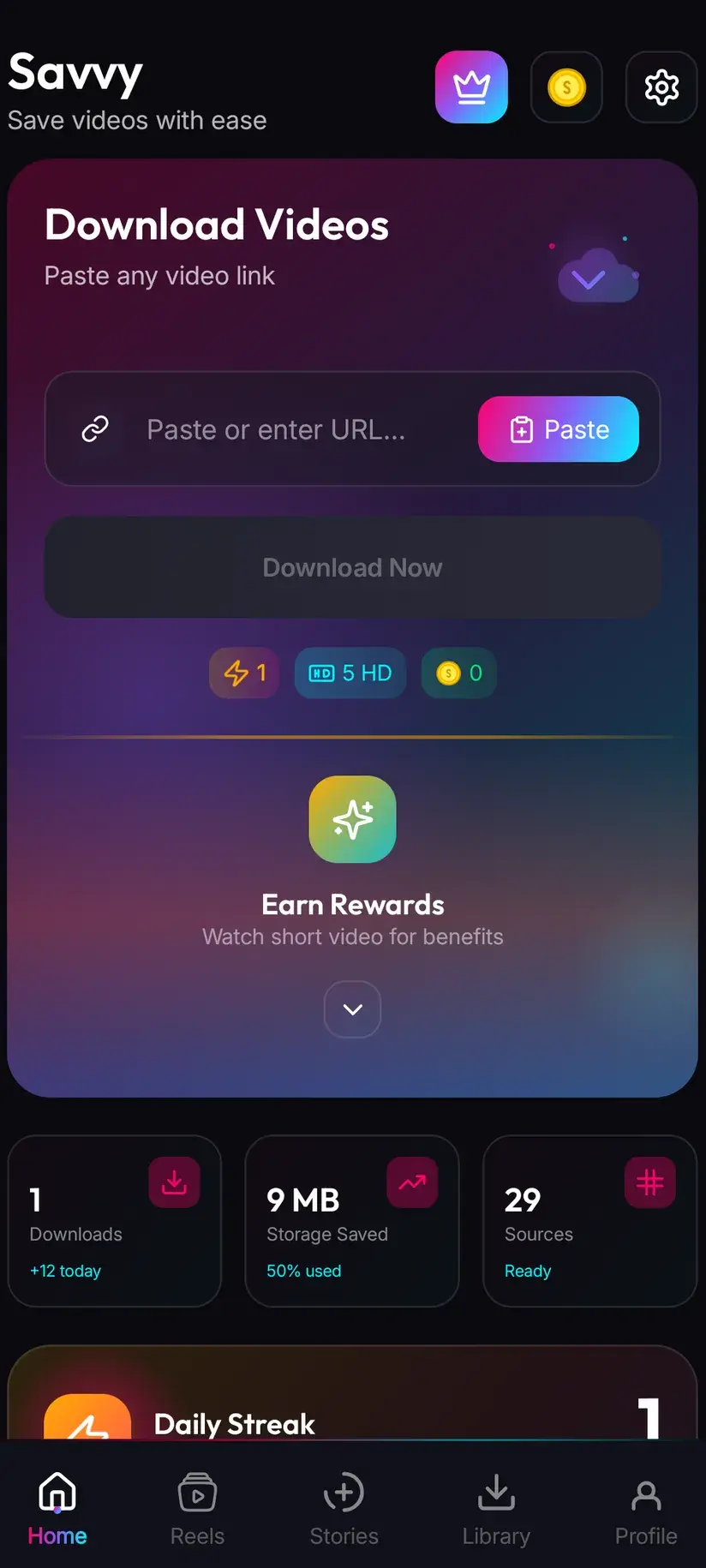
Tap the paper-plane share icon on the post, choose Share to… and pick Savvy. That hands the link over and starts the download by itself — nothing to type, and you never see the link field.
Otherwise: tap share, choose Copy link, open Savvy, tap the Paste button beside the link field, then tap Download. Worth being exact about the middle step, since a lot of apps in this category imply something else. Savvy does not watch your clipboard in the background and does not begin anything when you switch to it. Paste is a button that reads the clipboard once, checks the link is one it recognises, and fills the field. You start the download yourself.
A link pasted from a message, a note or a browser address bar works exactly the same as one copied from Instagram. What does not work is a link to a profile, a hashtag or a search result — there is no single piece of media behind those, so there is nothing to fetch.
Whose photograph is it, and what may you do with it
A public post is one anyone can open in a signed-out browser, and those are what a downloader can read. Nothing here needs an Instagram account: no sign-in, no connected session, nothing beyond storage permission. Instagram stories are the exception, because they have no public address at all and need an in-app account connection — a different flow, covered in downloading Instagram stories.
A private account is private at Instagram's end. A downloader reads exactly the page your browser reads and receives exactly the same refusal, so no app can show you an account you cannot already see. Anything advertising otherwise is describing something that does not work.
That is capability. Entitlement is a separate question and the one that actually matters. Photographs are copyright works from the moment the shutter closes, and they belong to the person who took them regardless of where they were posted. Saving your own photographs, keeping a copy of something you commissioned or were sent, or holding a picture for personal reference is ordinary. Reposting someone's photograph as your own, using it in an advert, or putting it on merchandise is not, and being able to download it changes nothing about that.
There is a middle case worth naming because it comes up constantly: reposting with credit. Crediting is good manners and it is not a licence. If you are reposting commercially or at scale, the answer is to ask, and most people say yes.
Downloading something and being entitled to keep or publish it are separate questions, and stills sit closer to the line than most media because photographs are so easy to reuse without thinking about it. Is downloading videos legal? sets out where that line usually falls.
Where photos land, and getting them back
A saved photograph is written to your device's Downloads folder, in a Savvy directory, under the Instagram subfolder — so Downloads / Savvy / Instagram. From that moment it is an ordinary image file: it appears in your gallery, opens in any viewer or editor, and can be shared onward like anything else.
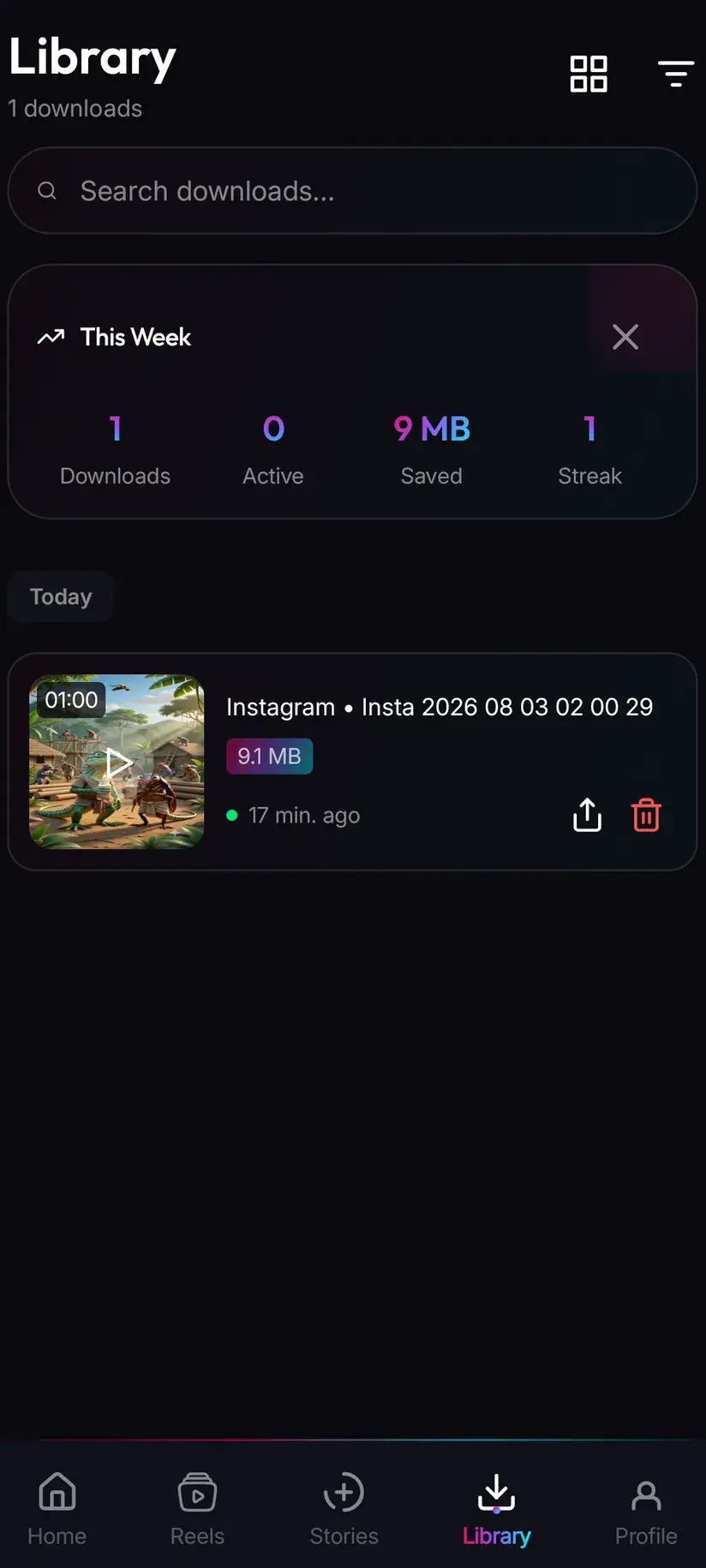
Inside the app, Library is much the faster route back. Photographs are the download type that piles up quickest, and a gallery full of screenshots is a bad place to look for one picture from three weeks ago. Library lists everything you have saved with search and filters, which turns that into a few seconds.
Storage is the companion screen. Individually a photograph is small, but a habit of saving carousels adds up faster than people expect, and Storage shows what each item is taking so you can clear several at once rather than hunting through the gallery.
Procedure
How to download an Instagram photo
Under a minute. A public post needs no Instagram account and no Savvy account. Have a coin balance if you are saving more than one image — stills are not on the free tier.
Install Savvy and allow storage access
Install Savvy from Google Play and open it, granting the storage permission when it is asked for. That is what lets a saved image be written where your gallery can see it rather than staying inside the app.
Open the post and check what is in it
Find the post in Instagram or a browser. Swipe through it before you copy anything — a carousel holds up to ten items and shows only the first as a thumbnail, so note which images you actually want.
Share it to Savvy
Tap the paper-plane share icon on the post, choose Share to… and pick Savvy. The link is handed over and the download starts by itself. If Savvy is not in the share sheet, choose Copy link and use the next step instead.
If you copied instead, tap Paste then Download
Open Savvy, tap the Paste button beside the link field to fill it with what you copied, then tap Download yourself. Paste fills and validates the field only — it does not start anything.
Choose your images from the carousel
Once the post resolves, Savvy shows what it contains. Select the images you want rather than the whole set: each one costs 5 coins, so a full carousel of ten is fifty.
Let it save, then find it in Library
The file lands in Downloads/Savvy/Instagram on the device, appears in your gallery, and is listed under Library inside the app where search and filters make it quick to retrieve later.
Frequently asked questions
- How do I download a photo from Instagram?
- Instagram has no save-to-device control for someone else's photograph, so you need the link. The quickest route is the share sheet: tap the paper-plane icon on the post, choose Share to… and pick Savvy — the link is handed over and the download starts on its own. If Savvy is not offered there, choose Copy link, open Savvy, tap Paste to fill the link field, then tap Download. Paste only fills the field; you start the download yourself.
- Is downloading Instagram photos free?
- No — an image costs 5 coins, flat, whatever its size. This catches people out because Savvy does have a free tier, but that tier covers standard-definition video up to 480p from a daily video allowance, and stills do not draw on it. Coins are earned as well as bought: the daily check-in and short rewarded ads both add to your balance, so a low-volume habit generally funds itself. Premium removes the per-download cost entirely.
- Can I download Instagram photos in HD or original quality?
- You get the largest file Instagram is serving for that post, which is the best available — but it is not the original that came out of the camera, and no app can produce that. Instagram stores a small number of fixed renditions and hands out whichever fits, so the size depends on when the post was published and what shape it is. Any tool promising HD or original quality is either relabelling the same file or upscaling it, which invents pixels rather than recovering them.
- How do I download all photos in an Instagram carousel?
- Paste or share the post link as usual — a carousel is a single /p/ link holding up to ten items. Once it resolves, Savvy shows you what the post actually contains and you choose what to take. Do choose, because billing is per item rather than per post: ten photographs is fifty coins. Only the first item shows as a thumbnail, so it is worth swiping through the post in Instagram first to see what is really in there.
- Is downloading better than taking a screenshot?
- Considerably. A screenshot captures your screen, so you get the image scaled to fit, cropped top and bottom, with the caption bar and icons baked in, and compressed a second time on top of Instagram's own compression. A download fetches the file Instagram is actually serving, at the size Instagram stores it, with no interface in the frame. On a phone the difference is modest; sent to someone else or opened on a laptop it is obvious.
- Can I download photos from a private Instagram account?
- No. A private account is private at Instagram's end, and a downloader reads exactly the page your browser reads — it gets exactly the same refusal. No app can show you an account you cannot already see, whatever it advertises. Public posts need nothing from you at all: no Instagram account, no sign-in, no connected session. Instagram stories are the one exception, and they need an in-app account connection rather than a link.
- Can I repost a photo I downloaded from Instagram?
- That is a copyright question rather than a technical one. A photograph belongs to whoever took it from the moment it is taken, wherever it was posted. Saving your own pictures, keeping something you were sent, or holding an image for personal reference is ordinary. Reposting someone else's work as your own, using it in an advert or putting it on merchandise is not — and crediting is good manners rather than a licence. If it is commercial or at scale, ask first.
- Where do downloaded Instagram photos save on my phone?
- In your device's Downloads folder, under a Savvy directory sorted by platform — so Downloads/Savvy/Instagram. From there it is an ordinary image: it shows up in your gallery and opens in any viewer or editor. Inside Savvy, Library lists everything you have saved with search and filters, which beats scrolling a gallery full of screenshots, and Storage shows what each item is taking up so you can clear several at once.