How do I download a Twitch clip?
A clip and a past broadcast look like the same thing on Twitch and behave nothing alike once you try to keep one — and the link in your clipboard already tells you which of the two you are holding.
- Guide
- How-to
- Read
- 13 min
- Language
- English
Steps checked against the Savvy Android app on
Devikon Research Team
First, work out whether you have a clip or a VOD
Twitch calls several different objects video, and people arrive at a downloader holding whichever one they happened to copy. The link shape tells you which, and it decides how the rest of this goes.
A clip is a short excerpt somebody cut out of a stream — seconds long, occasionally up to a minute or so. It gets its own page and its own address, and it survives independently of the broadcast it came from. Clip links come in two forms, which are equivalent: clips.twitch.tv/ followed by a nonsense-word slug, or twitch.tv/channelname/clip/ followed by the same slug. Those slugs are the memorable jammed-together phrases Twitch generates, and both shapes point at the same object.
A VOD is the past broadcast itself, at twitch.tv/videos/ followed by a long number. That is potentially hours of stream in one file, and it is on a clock — more on that further down.
A live channel page — plain twitch.tv/channelname — is neither. It is whatever is happening right now, or an offline screen. There is no fixed piece of media behind it, which is why pasting one into any downloader gets you nowhere.
Savvy recognises all the Twitch domains, including the mobile and clips subdomains, and reads both clip URL shapes. Recognising a link and resolving it remain separate steps, though: the app can tell an address is Twitch well before it knows whether a specific piece of media sits behind it.
- clips.twitch.tv/SomeNonsenseSlug — a clip, the straightforward case
- twitch.tv/channelname/clip/SomeNonsenseSlug — the same clip, written the other way
- twitch.tv/videos/1234567890 — a past broadcast, which is a different proposition entirely
- twitch.tv/channelname — the live channel; nothing fixed to fetch
If the clip is on your own channel, check Twitch first. The Creator Dashboard's clip manager offers a download for clips of your own broadcasts, and that is the cleanest route to your own content — no coins, no extraction, no third party in the middle.
Why clips are the easy case
Three things make a clip much less trouble than the broadcast it came from, and they are worth understanding rather than just taking on trust.
Clips are short. A clip is a handful of seconds, so the file is small, the download is quick, and a wobbly connection has far less opportunity to ruin it. Most of the failures people report with Twitch downloads are really failures on very long files.
Clips outlive their source. This is the part people miss. A clip carries on existing after the broadcast it was cut from has gone, which is precisely why the clip system exists — it is Twitch's own mechanism for keeping a moment past the life of the stream. So a clip link that resolved last month usually still resolves now.
Clips are separately addressable. Each one is its own page with its own permalink, so there is a single unambiguous thing for an extractor to find. Compare a channel page, where what is behind the URL changes minute to minute.
The practical upshot: if you want a specific moment from a stream and you can clip it or find someone who already has, that is a better plan than downloading the whole broadcast and cutting it yourself. It is faster, smaller, cheaper, and far less likely to fall over.
- Small file, quick fetch, much less to go wrong
- Survives after the source broadcast expires
- One permalink, one piece of media, no ambiguity
- Made by viewers as well as broadcasters, so the moment you want may already exist as a clip
Getting the link into the app
Two routes in, and they are not equally quick. Most people take the slower one out of habit.
On the clip, use Twitch's share control and pick Savvy from the system share sheet. That hands the link over directly and the download starts on its own — the field fills itself and the fetch begins without another tap from you.
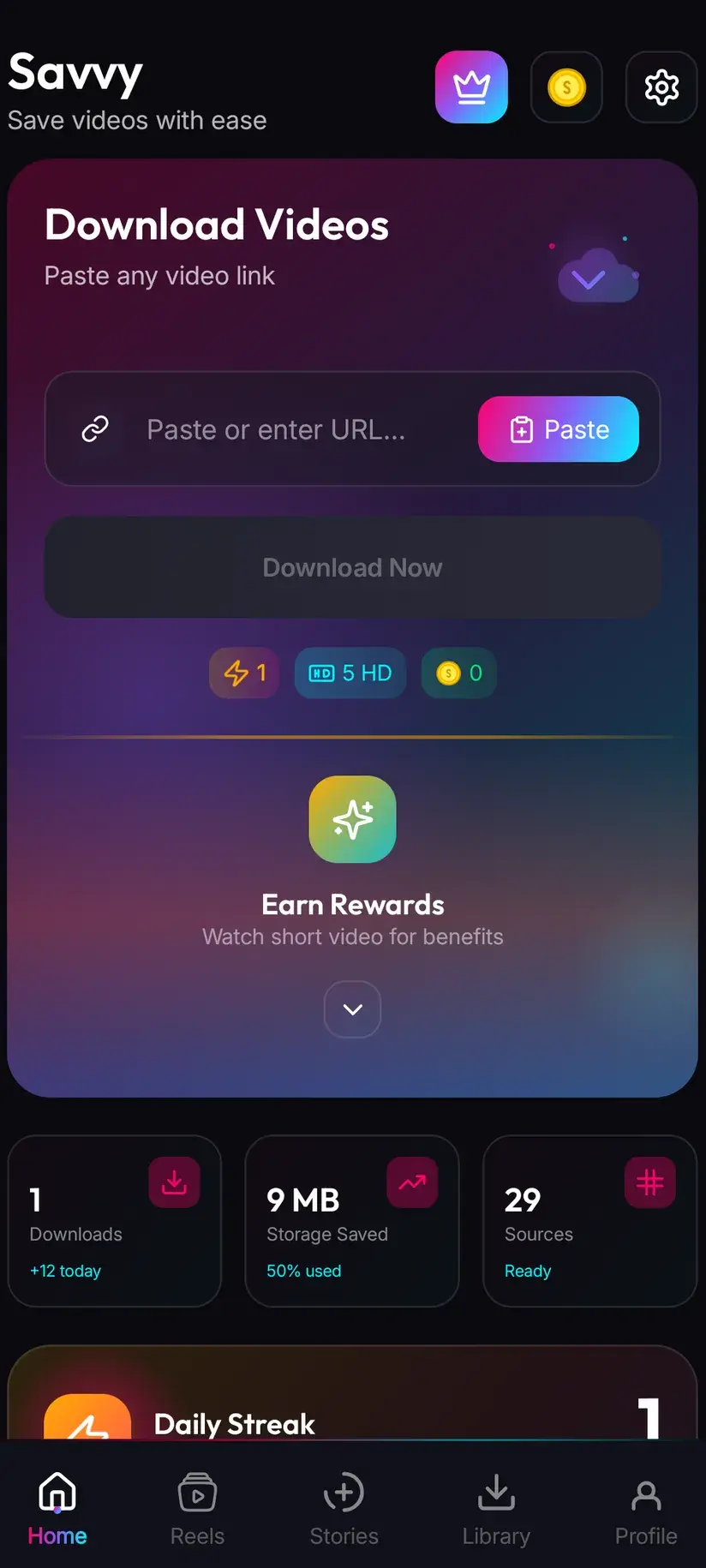
The other route is copy-and-paste. Copy the clip link, open Savvy, tap the Paste button beside the link field, then tap Download. That middle step is worth stating precisely, because plenty of downloader apps imply something else: Savvy does not monitor your clipboard in the background and does not start a download when you switch to it. Paste is an ordinary button. It reads the clipboard once, checks the link is a shape it recognises, and fills the field. Nothing else happens until you tap Download.
Either way, what matters is that the link points at the clip and not at the channel. The quickest sanity check is the address itself — if it contains /clip/ or sits on clips.twitch.tv, you have the right one.
- Share to Savvy — link filled and download started automatically
- Copy link, then Paste — tap Paste to fill the field, then tap Download yourself
- A link pasted from a chat message, a note or a browser address bar behaves the same as one copied from Twitch
- If Paste turns the link away, you have probably copied a channel or a directory page rather than a clip permalink
A Twitch link is tried against two extraction providers in priority order, and if the first cannot read the page the second is tried automatically. You see one spinner rather than two attempts — which also means a failure has already been through the whole chain, so hammering Download rarely helps. Waiting and retrying the same link later often does.
Quality, cost, and the fact that length does not change the price
Once a link resolves, Savvy lists the qualities that clip is genuinely available in and lets you pick. Standard definition, up to 480p, is free — it draws on a daily allowance rather than any balance, so routine saving costs nothing.
Above 480p the cost is in coins, Savvy's in-app currency, and here is the part worth knowing: the price is set by resolution, not by duration. A twenty-second clip and a four-hour broadcast at the same resolution cost exactly the same number of coins. That does not make downloading a whole broadcast a good idea — the next section is about why — but it does mean nobody is charging you by the minute.
What you can actually get depends on the stream. Twitch transcodes broadcasts into a ladder of qualities, and the ladder available to a channel is not the same for everyone; smaller channels are not guaranteed the full set. Frame rate matters here more than on most platforms, since a lot of Twitch content is 60fps and the difference is very visible on fast movement. A quality picker can only offer what exists, so check what is listed before spending on a higher tier.
- SD video, up to 480p — free, from your daily allowance
- HD and Full HD video — 10 coins, or one HD credit if you have one
- 2K video — 15 coins
- 4K video — 20 coins
- Images and audio — 5 coins
Coins are earned as well as bought — a short rewarded ad or a daily check-in both top up the balance, and the Coin Shop lists those alongside the packs. Premium removes ads and lifts the download limits, so the arithmetic stops applying. The free tier is ad-supported through Unity Ads, which collects your device's advertising ID; that is set out in the Savvy privacy policy.
VODs: length, expiry, and when this stops being sensible
Downloading a past broadcast is a different proposition from downloading a clip, and it deserves saying plainly rather than being glossed over.
Length is the first problem. A stream is frequently hours long. At HD that is a large file — the sort of size that fills a phone quickly, takes a serious while over mobile data, and gives an unstable connection ample opportunity to break the transfer somewhere in the middle. Nothing about the tooling changes that; it is simply a big file.
Expiry is the second, and it works the other way round. Twitch does not keep past broadcasts forever. They are deleted after a retention window that depends on the channel — shorter for ordinary channels, longer for Partners, Turbo users and Prime members. The exact figures have changed over the years, so treat Twitch's own help pages as the authority rather than any number you read in a blog post. Highlights and uploads are the exception: a broadcaster who converts a stream into a highlight keeps it indefinitely. So a VOD link that worked a fortnight ago may resolve to nothing today, and that is Twitch removing the source rather than a downloader failing.
Sub-only VODs are a third case, and a closed one. Some channels restrict past broadcasts to subscribers. That gate lives at Twitch's end, and a downloader reading the same page your browser reads receives the same refusal. No app changes that, whatever it advertises.
Put the three together and the advice is straightforward: if what you actually want is one moment, find or make a clip of it. Reach for a whole VOD only when you genuinely need the whole broadcast, and when you do, start it on a stable connection with plenty of space free.
A VOD link that has stopped working has usually expired rather than broken. Once Twitch has removed a past broadcast there is nothing left to fetch, and no downloader can retrieve something that no longer exists on the platform.
Overlays, rights, and where the file ends up
Savvy does not add a watermark of its own. Twitch does not stamp one on clips either — but a clip is a capture of the broadcast as it went out, which means whatever was on screen at the time is baked into the picture. Webcam frame, alert popups, chat overlay, sponsor banner: all of it is pixels in the frame, indistinguishable from the game itself. That is not a watermark, and no download setting removes it.
On rights, Twitch is unusual in having two layers stacked on top of each other. A clip is somebody's stream, and the stream is very often somebody else's game, music or film playing underneath it. Downloading resolves neither layer. Saving a clip to rewatch offline, keeping your own content, or working with material you have permission to use is ordinary; reuploading a streamer's moment as your own, or building a monetised channel out of other people's clips, is a copyright question and has nothing to do with which app fetched the file.
Finished downloads go to your device's Downloads folder, into a Savvy directory sorted by platform — so a Twitch clip lands in Downloads / Savvy / Twitch. From there it is an ordinary file that plays anywhere and shares like any other. Inside the app, Library is the faster way back, with search and filters, and Storage shows what each file is costing you in space so you can clear several at once.
Being able to download something is not the same as having rights to it. Personal offline viewing sits in very different territory from reuploading or monetising. Is downloading videos legal? sets out where the line usually falls.
Procedure
How to download a Twitch clip
Under a minute for a clip. You do not need a Twitch account for a public clip, and you do not need a Savvy account at all. If the clip is from your own channel, try Twitch's own clip manager first.
Install Savvy and allow storage access
Install Savvy from Google Play and open it. Grant the storage permission when it is asked for — that is what lets a finished download be written somewhere your gallery can see rather than staying inside the app.
Open the clip and check the address
Find the clip on Twitch and confirm the link contains /clip/ or sits on clips.twitch.tv. A plain channel address or a /videos/ address is not a clip, and the second of those is a full broadcast.
Send the link to Savvy
Use Twitch's share control on the clip and pick Savvy from the system share sheet. The link is handed over and the download starts on its own. If Savvy is not offered, copy the clip link instead and continue with the next step.
If you copied instead, tap Paste and then Download
Open Savvy and tap the Paste button beside the link field. That fills the field with what you copied and checks the shape is one the app recognises — it does not start anything. Tap Download afterwards to begin.
Choose a quality
Savvy lists the qualities that clip is genuinely available in. SD up to 480p is free from your daily allowance; HD and above spend coins, priced by resolution rather than by length. Pick the highest option actually listed.
Let it finish, then check Library
Progress shows in the app. When it completes the file is in Downloads/Savvy/Twitch on your device and listed under Library inside Savvy, where search and filters make it easy to find later.
Frequently asked questions
- How do I download a Twitch clip to my phone?
- Use Twitch's share control on the clip and pick Savvy from the system share sheet — the link is handed over and the download starts on its own. If Savvy is not offered there, copy the clip link, open Savvy, tap the Paste button to fill the link field, then tap Download. Paste only fills the field; it does not start anything by itself. Check the address contains /clip/ or sits on clips.twitch.tv before you start.
- What is the difference between a Twitch clip and a VOD?
- A clip is a short excerpt cut out of a stream — seconds long, with its own page and its own permalink, and it keeps existing after the broadcast it came from is gone. A VOD is the past broadcast itself, potentially hours in one file, living at twitch.tv/videos/ followed by a long number. Clips are the easy case: small, permanent and unambiguous. VODs are large and are deleted after a retention window.
- Can I download a full Twitch VOD?
- Yes, but think about whether you want to. A past broadcast is frequently hours long, so at HD it is a large file that fills storage quickly, takes a long time over mobile data, and gives an unstable connection plenty of chance to break the transfer. If what you actually want is one moment, clipping it is faster, smaller and far more reliable. Sub-only VODs are a separate matter and cannot be reached from a link at all.
- Why has my Twitch VOD link stopped working?
- Almost certainly because it expired. Twitch deletes past broadcasts after a retention window that depends on the channel — shorter for ordinary channels, longer for Partners, Turbo users and Prime members — and the exact figures have changed over time, so Twitch's own help pages are the authority. Once the broadcast is removed there is nothing left to fetch. Highlights and uploads are the exception and are kept indefinitely, as are clips, which is a large part of why clips exist.
- Does downloading a long VOD cost more coins?
- No. The cost is set by resolution and media type, not by duration, so a twenty-second clip and a four-hour broadcast at the same resolution cost the same. SD up to 480p is free from a daily allowance; above that it is 10 coins for HD or Full HD, or one HD credit, 15 for 2K, 20 for 4K, and 5 for an image or audio file. What a long VOD does cost you is time and storage space.
- Will the downloaded clip have the streamer's overlay on it?
- Yes, and there is no way around it. A clip is a capture of the broadcast as it went out, so the webcam frame, alerts, chat overlay and any sponsor banner on screen at the time are part of the picture — pixels in the frame, not a layer that can be switched off. Savvy adds no watermark of its own, and Twitch does not stamp one on clips, but what the streamer had on screen travels with the video.
- Can I download a subscriber-only Twitch VOD?
- No. Sub-only past broadcasts are gated at Twitch's end, and a downloader reads the same page your browser reads — it receives the same refusal. No app gets you into content your account cannot already open, whatever it claims. Think of these tools as a way of keeping content you already have the right to keep, rather than a way past a gate.
- Where do downloaded Twitch clips save on my phone?
- In your device's Downloads folder, under a Savvy directory sorted by platform, so Twitch clips land in Downloads/Savvy/Twitch. From there it behaves as an ordinary file: it appears in your gallery and plays in any video app. Inside Savvy, Library lists everything you have saved with search and filters, and Storage shows what each download takes up so you can clear several at once when broadcasts start eating space.