What is the difference between 1080p and 4K?
Resolution is the number every app puts in front of you and the one that predicts picture quality least reliably — which is why the 4K version of a clip is sometimes indistinguishable from the free one.
- Guide
- Explainer
- Read
- 13 min
- Language
- English
Steps checked against the Savvy Android app on
Devikon Research Team
What the numbers count
A resolution is the size of the grid of pixels the video is drawn on. That is all it is. 1080p means the picture is 1080 pixels tall, on a grid 1920 across; 4K means roughly four thousand pixels across, on a grid 2160 tall. Everything else people attach to those labels is inference.
The trailing letter is not a unit. The p stands for progressive — every frame drawn complete, in order — as opposed to the interlaced broadcast formats it replaced. It has nothing to do with pixels, and there is no such thing as more p.
Here are the tiers you will actually be offered, with what each one is:
- 360p — 640 x 360. Small, soft, and mostly a fallback for a weak connection
- 480p — 854 x 480. Standard definition. Perfectly watchable on a phone, and the free tier in Savvy
- 720p — 1280 x 720. HD. The point at which on-screen text and fine detail become comfortable
- 1080p — 1920 x 1080. Full HD, and the practical ceiling for most social video
- 2K — usually 2560 x 1440 in apps like this, though the term is borrowed loosely from cinema, where 2K means something slightly different
- 4K — 3840 x 2160 for consumer video. Four times the pixels of 1080p, not twice, because both dimensions double
Portrait video reverses the labels in a way that catches people out. A vertical reel described as 1080p is 1080 pixels wide and 1920 tall — the number refers to the shorter side. So a 1080p reel and a 1080p landscape video have the same number of pixels along different axes, and the reel is the taller, narrower one.
Bitrate is the number nobody shows you, and it matters more
If resolution is the size of the canvas, bitrate is how much paint is allowed per second. It is measured in bits per second, and it determines how much of the original detail survived compression.
Video compression works by throwing away information that is expensive to store and hard to notice: fine texture, subtle gradients, the differences between one frame and the next. How aggressively it throws that away is set by the bitrate. Give an encoder plenty and the result is close to the source. Starve it and it starts making visible compromises — blocky squares in dark areas, banding across smooth skies, faces turning to mush the moment somebody moves, detail dissolving in anything with rain, smoke, confetti or foliage in it.
This is why a well-encoded 1080p file routinely looks better than a badly encoded 4K one. The 4K version has four times as many pixels to fill; if it was not given proportionally more data to fill them with, each pixel is a worse guess than its 1080p counterpart. You get a larger, softer, blockier picture and a much larger file for it.
Two practical consequences follow. Resolution sets a ceiling on detail but does not deliver it, so a resolution label is a promise about the grid and not about the picture. And a video's difficulty matters: a static talking head survives a low bitrate almost unscathed, while a handheld shot of a crowd at night falls apart at the same setting. Same numbers, very different results.
- Blocking — visible squares, worst in dark and fast-moving areas. Classic symptom of too little bitrate
- Banding — smooth gradients breaking into stripes, most obvious in skies and studio backdrops
- Smearing — detail dissolving during movement and snapping back when the shot settles
- Softness at high resolution — the tell-tale sign of a big grid with not enough data behind it
Why the 4K option is often simply not there
A quality picker can only offer what exists. It is not a set of processing options; it is a list of the renditions the platform actually holds for that video. If the highest entry is 720p, that is the ceiling for that clip, and no setting anywhere will raise it.
There are three reasons a high tier goes missing, and they stack.
The creator never shot it that way. Plenty of well-made social video is filmed and exported at 1080p, deliberately, because that is what the format is watched at. There is no 4K master to serve.
The platform re-encoded the upload. This is the big one. Social platforms do not store what you give them; they transcode it into their own ladder of renditions, and they compress hard because they are serving billions of streams. Uploading a pristine 4K file does not guarantee a 4K rendition comes out the other end, and the encode is usually more aggressive for large files, poor upload connections and smaller accounts.
The video is old. Renditions get pruned, formats change, and something posted years ago may exist now only in whatever the platform kept.
Which leads to the rule that saves the most coins: downloading cannot add detail that was never uploaded. If the picker lists 720p as its top option, choosing a higher tier elsewhere is not an option you have. And where a higher tier is listed but the source was compressed on the way in, you get a bigger file of the same picture rather than a better one. Look at what the list contains before assuming what it should contain.
Be wary of anything offering to upscale or enhance a saved video to 4K. Upscaling invents pixels by interpolating between the ones that exist — at best it makes a soft picture larger and slightly smoother, and it can never recover detail that compression already discarded. It also re-encodes the whole file, so you pay a further generation of loss for the privilege.
What any of this is worth on a phone screen
The uncomfortable answer for anyone selling resolution: on a phone held at normal distance, far less than the numbers suggest.
What your eye can actually resolve depends on how much of your field of view the screen occupies — a function of its size and how far away it is. A six-inch phone at arm's length occupies very little of it. Past a certain density, additional pixels land closer together than the eye can separate, and the picture stops improving no matter what the label says.
In practice, on a phone: the step from 480p to 720p or 1080p is genuinely visible, particularly in on-screen text, faces at a distance, and anything with fine detail. The step from 1080p to 4K, on that same screen, is close to invisible. You are paying for pixels you cannot see and storage you can.
Higher tiers do earn their place, but for specific reasons rather than general ones:
- A big screen — casting to a television, or watching on a laptop or monitor, where the extra detail is resolvable
- Editing — if you intend to crop into the frame, reframe a landscape clip for portrait, or stabilise it, you are effectively zooming, and the spare pixels become real
- Archiving something that matters — a copy of your own work you want to keep at the best available quality
- Text-heavy or detailed footage — screen recordings, presentations, anything where small type has to stay legible
File size, and where it actually comes from
File size follows bitrate multiplied by duration, not resolution directly. Resolution influences it only because higher resolutions are normally given higher bitrates — which is exactly why a badly encoded 4K file can be smaller than a good 1080p one, and look worse.
The consequences are the ones you feel later rather than at the moment of downloading. A phone fills up quietly. A large file over mobile data costs you allowance. Backups and gallery syncing take longer. And thirty saved clips at a high tier will do considerably more damage than the same thirty at SD, for a difference you probably could not pick out in a blind test on that phone.
Savvy's Storage screen exists for exactly this: it shows what each download is taking up and lets you clear several at once, which is a much better habit than discovering the problem when the camera refuses to open. Library is the companion — everything saved, with search and filters, so finding one clip from three weeks ago does not mean scrolling a gallery.
The sensible working rule is to match the tier to the purpose. Something you will watch once on the train and delete does not need 4K. Something going onto a television, or into an edit, or into an archive, might.
What each tier costs in Savvy
Here is the whole of it, with no asterisks.
Standard definition, up to 480p, is free. It comes out of a daily allowance rather than out of any balance, so on an ordinary day you can save clips at SD and spend nothing at all. That is not a trial tier or a teaser — it is the tier most phone viewing genuinely needs, which is why it is the one that is free.
Above 480p the cost is in coins, Savvy's in-app currency:
- SD video, up to 480p — free, from your daily allowance
- HD and Full HD video — 10 coins, or one HD credit if you have one
- 2K video — 15 coins
- 4K video — 20 coins
- Images and audio — 5 coins
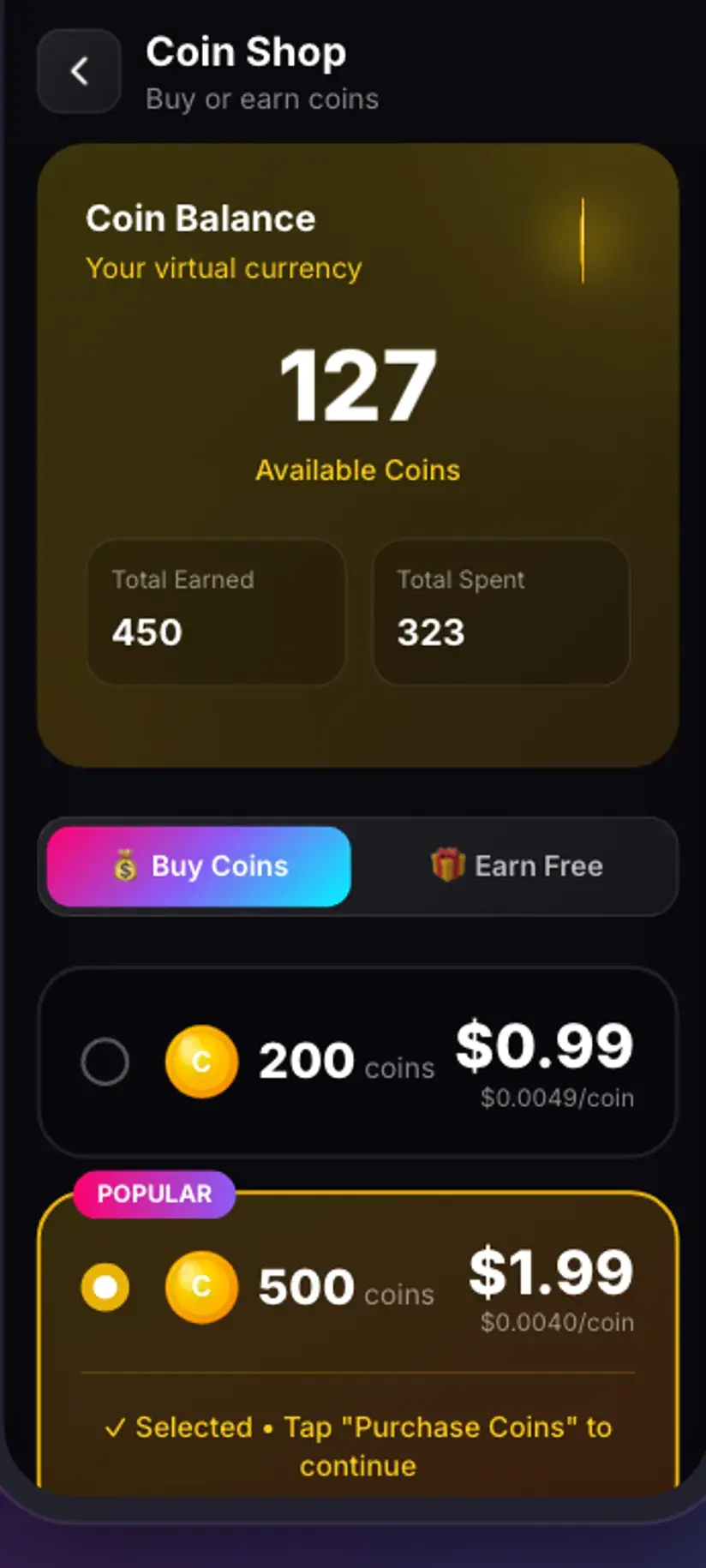
Coins are earned as well as bought. Watching a short rewarded ad adds to your balance, so does checking in daily, and the Coin Shop lists both routes alongside the packs. A Premium subscription is the other way out: it removes the ads and lifts the download limits, so the arithmetic stops applying. The free tier is ad-supported through Unity Ads, which collects your device's advertising ID — that is set out in the Savvy privacy policy.
Choosing a tier without thinking about it every time
Most people want a default rather than a decision, and the default that costs the least and disappoints the least is SD.
Leave the picker at SD unless something about the specific clip argues otherwise. It is free, it is a small file, and on the screen you will almost certainly watch it on, it is fine. Then step up deliberately, for a reason you can name — a television, an edit, an archive, small text you need to read.
The one check worth doing before spending is looking at what the picker actually lists. If the top option offered is 720p, the money question resolves itself. And if a clip was clearly published from a heavily compressed export — soft, blocky, smeary at the free tier already — a higher tier will hand you the same faults at a larger size. Compression damage is baked into the file, in exactly the way a watermark is.
- Watching on your phone, once — SD. Free, and you will not notice the difference
- Keeping something you will rewatch, or casting it to a TV — HD or Full HD
- Going into an edit where you will crop, reframe or stabilise — 2K or 4K, if the source genuinely offers them
- A clip that already looks soft at SD — no tier will fix it. Save the free version
Procedure
How to choose a download quality in Savvy
The picker appears after a link resolves, because until then nothing knows which renditions exist.
Get the link into the app
The quick route is the source app's share sheet — choose Share to… and pick Savvy, and the download starts on its own. Otherwise copy the link, open Savvy, tap the Paste button to fill the link field, then tap Download. Paste only fills the field; it does not start anything by itself.
Read the list, do not assume it
Savvy lists the qualities that particular video is actually available in. If 720p is the highest entry, that is the ceiling for that clip and no higher tier exists to buy. This is the step that saves the most coins.
Decide where you are going to watch it
Phone only, and probably once? SD is free from your daily allowance and will look fine. Television, laptop or an edit? That is where the higher tiers are worth their cost.
Pick the tier and confirm the cost
SD up to 480p costs nothing. HD or Full HD is 10 coins or one HD credit, 2K is 15, 4K is 20, and an image or audio-only file is 5. If your balance is short, the Coin Shop has a rewarded ad and a daily check-in as well as packs.
Check the result full-screen
Open the finished file from Library and watch a few seconds at full size. If a paid tier looks no better than the free one would have, the source was compressed on the way in — and that is worth knowing before you buy the next one.
Keep an eye on Storage
The Storage screen shows what each download is taking up and clears several at once. A dozen clips at a high tier add up much faster than the same dozen at SD.
Frequently asked questions
- What is the difference between 1080p and 4K?
- 1080p draws the picture on a grid 1920 by 1080; consumer 4K uses 3840 by 2160, which is four times as many pixels because both dimensions double. That is a ceiling on detail rather than a guarantee of it — how much detail actually survives is set by bitrate, the amount of data per second the encoder was allowed. A well-encoded 1080p file routinely looks better than a starved 4K one, and on a phone screen the two are close to indistinguishable in any case.
- Is 4K worth downloading on a phone?
- Usually not. What your eye can resolve depends on how much of your field of view the screen fills, and a six-inch phone at arm's length fills very little of it — the step from 1080p to 4K is close to invisible there, while costing four times the pixels and considerably more storage. 4K earns its place when you will cast to a television, edit the clip in a way that crops or zooms into the frame, or archive something you care about at the best available quality.
- Why is there no 4K option for this video?
- Because that rendition does not exist. A quality picker lists what the platform actually holds, not what it could generate. Often the creator exported at 1080p and there is no 4K master; more often the platform re-encoded the upload into its own compressed ladder, which is harsher on large files, poor upload connections and smaller accounts. Older videos also lose renditions over time. Downloading cannot add detail that was never uploaded.
- What is bitrate, and why does it matter more than resolution?
- Bitrate is how much data the video gets per second, and it decides how much of the original detail survived compression. Resolution only sets the size of the grid. Starve a large grid of data and each pixel becomes a worse guess, which shows up as blocky squares in dark areas, banding across skies, and faces turning to mush during movement. That is why a good 1080p file can beat a bad 4K one, and why the same setting looks fine on a static talking head and falls apart on a handheld night shot.
- How much does an HD or 4K download cost?
- SD video up to 480p is free, from a daily allowance rather than any balance. Above that the cost is in coins: 10 for HD or Full HD, or one HD credit if you have one; 15 for 2K; 20 for 4K; and 5 for an image or an audio-only file. Coins are earned free by watching a short rewarded ad or checking in daily, as well as bought in packs. A Premium subscription removes the ads and lifts the limits instead.
- Will downloading at a higher quality improve a blurry video?
- No. Compression damage is baked into the file the platform holds, in the same way a watermark is part of the picture. If a clip already looks soft, blocky or smeared at the free tier, a paid tier hands you the same faults at a larger size. Beware of upscaling tools too — they interpolate new pixels between the existing ones, which can make a soft picture bigger and smoother but cannot recover detail that was already discarded, and they re-encode the whole file to do it.
- Which quality should I pick by default?
- SD, and step up deliberately. It is free from your daily allowance, the file is small, and on the screen you will most likely watch it on you will not see the difference. Move to HD or Full HD when you will rewatch something or cast it to a larger screen, and to 2K or 4K only when you will crop, reframe or stabilise the footage in an edit — and only when the picker genuinely lists those options for that clip.
- How much space do downloads take up on my phone?
- File size follows bitrate multiplied by duration rather than resolution directly, so there is no fixed figure per minute — but higher tiers are given more data per second, which is why they are larger. The practical answer is to watch it rather than estimate it: Savvy's Storage screen shows what each download is taking up and lets you clear several at once, and Library lists everything saved with search and filters so you can find what is worth keeping.