How do I download a video from LinkedIn?
Most people asking this want their own post back, or a public talk to keep for reference — and on LinkedIn the deciding factor is not the app you use but whether the post opens when you are signed out.
- Guide
- How-to
- Read
- 12 min
- Language
- English
Steps checked against the Savvy Android app on
Devikon Research Team
The test that answers the question in ten seconds
LinkedIn is not like Instagram or Reddit, where nearly everything worth saving is openly readable. It is a network built around being logged in, and how much of it a signed-out visitor sees varies from post to post. That single fact decides whether a video can be saved, and it is easy to check before you install anything.
Open the post's link in a private or incognito browser window. You will be signed out there. If the post loads and the video plays, it is publicly reachable and an extractor can read the same page. If instead you get a sign-in wall, a truncated preview or a prompt to join, then the video is not publicly reachable — and no downloader changes that, because a downloader is just another signed-out visitor.
This is worth doing first because it turns a vague frustration into a clear answer. A great many complaints that an app could not download a LinkedIn video are really complaints that the post was never public, and the ten seconds spent in an incognito window makes the difference obvious.
It also tells you something useful about your own posts. If you publish a video and want a colleague outside your network to see it, the same test shows you what they will get.
- Plays in an incognito window — publicly reachable, and a link download has a good chance
- Sign-in wall or join prompt — not publicly reachable, and that is the end of it
- The test is about the *post*, not your account — being signed in yourself tells you nothing about what a downloader can see
- Company-page posts and public thought-leadership posts are the ones most often open; personal posts vary by the poster's settings
Getting the right link across
LinkedIn buries its share control slightly, which is why people end up copying the wrong thing.
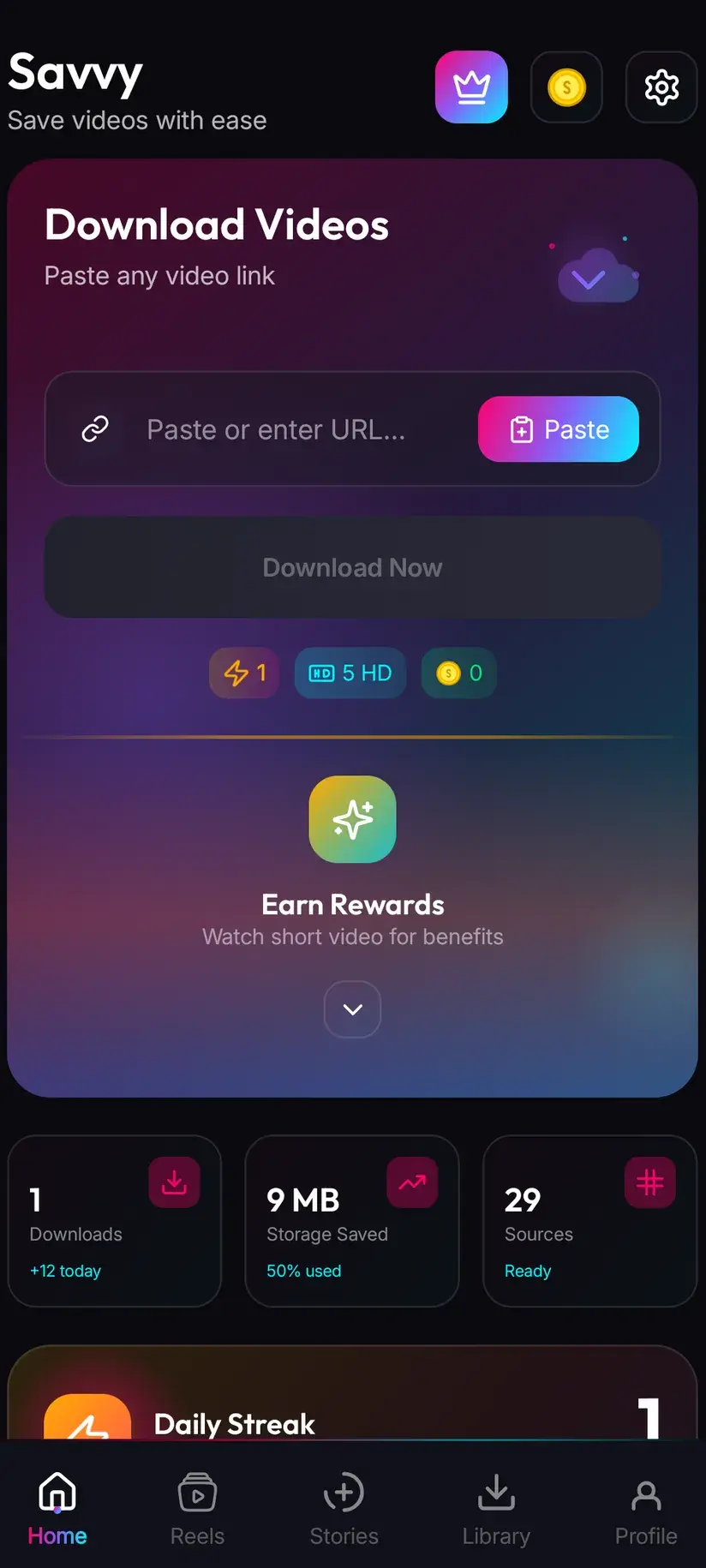
On the post itself, open the three-dot menu in its top corner and choose Copy link to post. That gives you the post's own address — usually containing /posts/ or /feed/update/ — which is what identifies one piece of media. Then open Savvy, tap the Paste button beside the link field, and tap Download.
If LinkedIn's share sheet offers Savvy directly, take it: the link is handed over and the download starts on its own, with nothing for you to tap afterwards. Where it is offered varies by device and by LinkedIn version, so treat it as a bonus rather than the plan.
One thing to be precise about, since downloader apps are routinely vague here: Paste is an ordinary button. Savvy does not read your clipboard in the background and switching to the app does not start anything. Paste reads the clipboard once, checks the link is one it recognises, and fills the field. The download waits for you.
- Copy link to post from the three-dot menu — the address you actually want
- lnkd.in short links are recognised and followed
- Article links (containing /pulse/) may hold embedded video that is hosted elsewhere — what comes back depends on where the video really lives
- A profile link (/in/…) or a company page link (/company/…) will not work: those are pages full of things, not a single video
- A link pasted from an email, a message or a browser address bar behaves exactly like one copied in the app
Copying from the desktop site works just as well — send yourself the URL and paste it into Savvy on your phone. The link is the same either way, and the address bar on desktop is often the quickest way to get a clean one.
Anything behind a login stays behind it
This is the part worth stating without hedging, because LinkedIn has more locked material than most platforms and people reasonably wonder which side of the line their case falls on.
A downloader reads a page the way a signed-out browser does. It has no account, no session and no privileged access, so whatever LinkedIn withholds from a signed-out visitor is withheld from it too. That covers posts visible only to connections, content inside private groups, videos sent in messages, event replays gated to registrants, and subscription learning material. None of that is reachable from a public link, and this guide has no workaround for any of it, because there is not one to have.
Two practical consequences follow. If the video is yours, you are not stuck: you posted it from a file, and going back to that file — or to whoever produced it — always beats extracting a re-encoded copy of it. If the video is someone else's and it is gated, the route is to ask them. In a professional context that is usually a short message and an entirely normal request, and it gets you a better file than any extraction would.
There is also a middle case worth naming. A post can be public today and restricted tomorrow, because the poster changed a setting or the post was deleted. A link that worked last month and fails now has usually moved, not broken.
Paid course and subscription video is out of scope here for a straightforward reason: access to it is what was bought, and saving it locally is a licensing question rather than a technical one. Nothing in this guide is intended to help with that.
Why people want their own LinkedIn video back
The reasons people land on this page are unusually consistent, and they are almost all archival rather than acquisitive.
The commonest is recovering your own work. A campaign clip was posted eighteen months ago; the agency that made it has moved on; the master file is on a laptop that was replaced. What remains is the post. Downloading it is a recovery route — worse than the original, but real.
Close behind: keeping a public talk, product demo or conference clip for internal reference, so a team can watch it without a live connection or a shared login. And a third, quieter one — building a portfolio or a case-study deck from work you published under a company account and no longer have raw files for.
None of that changes what is reachable, but it does change the advice. If the video matters to you professionally, the post is the worst copy of it that exists. Keep your masters somewhere durable, and treat a download as the fallback rather than the archive.
Quality, and what each tier costs
Once the link resolves, Savvy lists the resolutions that post genuinely exists in and you choose. Standard definition, up to 480p, is free — drawn from a daily allowance rather than from any balance.
LinkedIn re-encodes what is uploaded, as every platform does, and the ceiling you see in the picker is the ceiling for that post. Downloading cannot add detail that was never uploaded, so if the highest entry is 720p, spending on a larger file gets you the same picture in more megabytes. That caveat matters more on LinkedIn than elsewhere, because so much of what is posted there began as a screen recording, a webinar capture or an export from a slide deck — all of which are soft to begin with, whatever resolution they claim.
Where a video was genuinely produced and published at higher resolution, the tiers are:
- SD video, up to 480p — free, from the daily allowance
- HD and Full HD video — 10 coins, or one HD credit
- 2K video — 15 coins
- 4K video — 20 coins
- Images and audio — 5 coins
Coins are earned as well as bought — a short rewarded ad or a daily check-in both add to the balance, and the Coin Shop lists both beside the packs. Premium removes the ads and lifts the limits. The free tier is ad-supported through Unity Ads, which collects your device's advertising ID, as set out in the Savvy privacy policy.
Watermarks, credit, and reusing what you save
Savvy adds no watermark, and LinkedIn does not stamp a mark of its own onto video the way some platforms brand their exports. What travels with a saved file is whatever was already burned into the picture: a company logo in the corner, a lower-third with a speaker's name, baked-in subtitles, or another platform's watermark on something cross-posted. Those are pixels in the frame. Removing one means cropping and re-encoding, which costs picture quality and is not something a download does differently.
Reuse deserves more care here than on a consumer platform, because the context is professional and the consequences are too. A video published on LinkedIn is usually someone's work product, often made under contract, and frequently carrying a client's brand. Saving it to watch, to reference internally, or because you commissioned it is ordinary. Re-uploading it under your own name, cutting it into your own marketing, or presenting it as your work is a different matter — and the fact that it downloaded easily is not a licence.
The professional norm is also the easy one: ask. A short message to the poster costs nothing, gets you a better file than any extraction, and settles the permission question in writing.
Being able to save something says nothing about being allowed to republish it. Personal or internal reference and public reuse sit in very different places. Is downloading videos legal? sets out how the line is usually drawn.
Where the file lands, and what a failure means
Finished downloads go to your device's Downloads folder, into a Savvy directory with a subfolder per platform — so a LinkedIn video arrives at Downloads / Savvy / LinkedIn. From there it is an ordinary MP4: it appears in your gallery, plays in any video app, and can be dropped into a deck or shared onward like any other file.
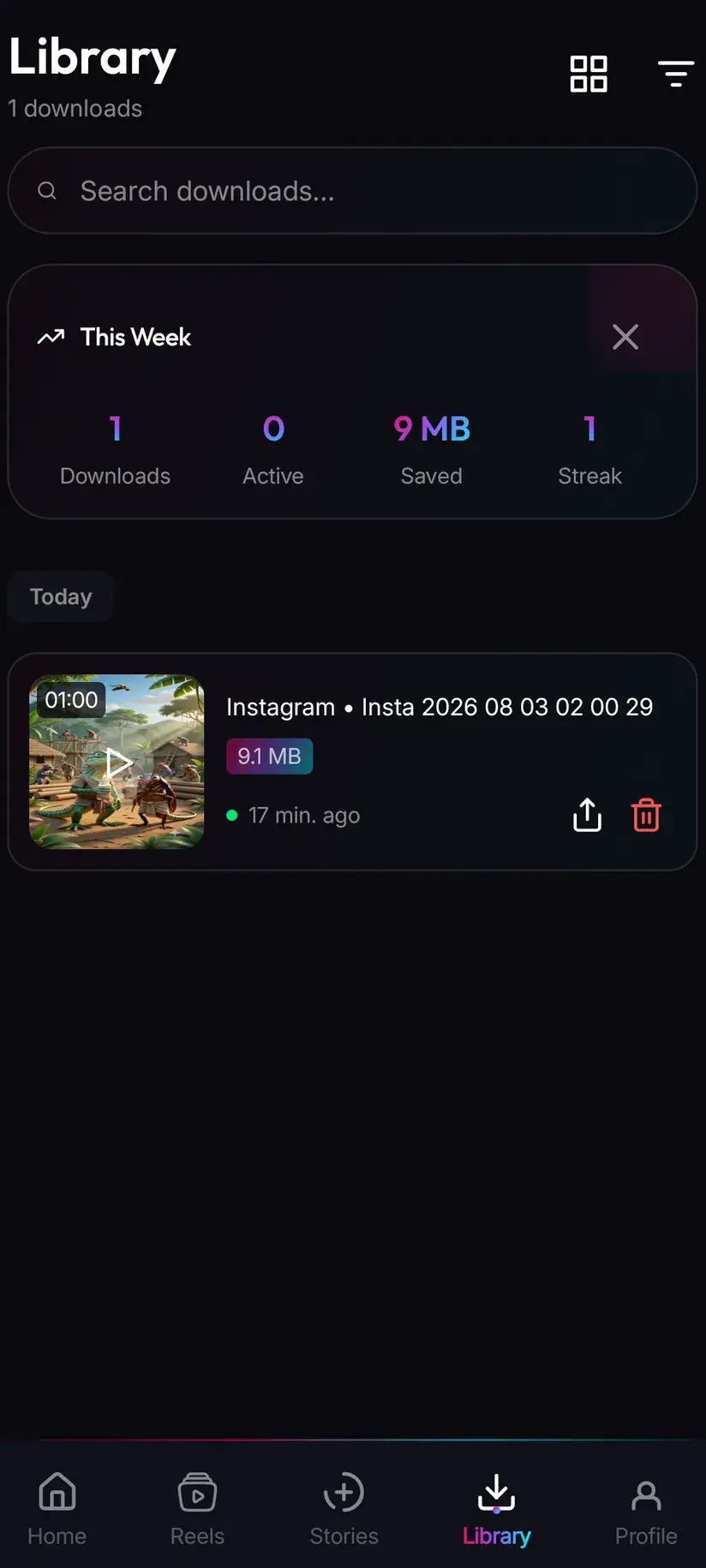
Library inside the app lists everything you have saved, with search and filters, which is considerably faster than scrolling a gallery. Storage shows what each file costs you in space and clears several at once.
If a link refuses, work through it in order rather than tapping Download again. First check the post in an incognito window — if it is gated, that is your answer and no retry will change it. If it is genuinely public, the failure is a page-shape problem: a LinkedIn link is tried against four extraction providers in priority order and falls through automatically, so an empty result means the whole chain came back empty. Waiting and retrying the same link later does work, because both LinkedIn's markup and the providers behind Savvy keep changing.
Procedure
How to download a LinkedIn video
A minute, assuming the post is public. No LinkedIn account is needed to save a public post, and no Savvy account is needed at all.
Check the post is publicly visible
Open the post's link in a private or incognito browser window, where you are signed out. If the video plays, it is reachable. If you get a sign-in wall or a join prompt, it is not — and no app changes that, so stop here.
Install Savvy and allow storage access
Install Savvy from Google Play and open it. Grant the storage permission when asked — it is what lets a finished file be written where your gallery can see it, rather than staying inside the app.
Copy the link to the post
On the post, open the three-dot menu in its top corner and choose Copy link to post. That gives the post's own address, containing /posts/ or /feed/update/. A profile or company-page URL will not work, since neither points at a single video. An lnkd.in short link is fine.
Paste it into Savvy and tap Download
Open Savvy, tap the Paste button beside the link field to fill it, then tap Download. Paste only fills the field and checks the link is recognised — it does not start anything by itself. If LinkedIn's share sheet offers Savvy directly, use that instead and the download starts on its own.
Choose a quality
Savvy lists the resolutions that post genuinely exists in. SD up to 480p is free from your daily allowance; HD and above spend coins. Pick the highest option actually listed rather than assuming a better one exists behind it.
Find it afterwards
The finished file is at Downloads/Savvy/LinkedIn and listed under Library inside the app, where search and filters make it easy to retrieve months later.
Frequently asked questions
- How do I download a video from a LinkedIn post?
- Open the three-dot menu on the post and choose Copy link to post — that gives the post's own address, containing /posts/ or /feed/update/. Open Savvy, tap the Paste button beside the link field to fill it, then tap Download and pick a quality. Paste only fills the field; it does not start the download. If LinkedIn's share sheet offers Savvy directly, choosing it hands the link over and starts the download on its own.
- Why does my LinkedIn video link not work?
- Usually because the post is not publicly visible. Open the link in a private or incognito window, where you are signed out: if you get a sign-in wall or a join prompt rather than the video, an extractor gets the same refusal, because it is also a signed-out visitor. The other common cause is copying the wrong link — a profile URL or a company-page URL points at a page of many things rather than at one video.
- Can I download a LinkedIn video that is only visible to connections?
- No. A downloader has no account and no session, so anything LinkedIn withholds from a signed-out visitor is withheld from it too — posts limited to connections, private group content, videos sent in messages, gated event replays and subscription learning material included. If the video is yours, go back to the file you posted from. If it is someone else's, ask them: in a professional setting that is a normal request and it gets you a better copy.
- Is downloading LinkedIn videos free?
- Standard definition up to 480p is free, taken from a daily allowance rather than any balance. Above 480p you spend coins: 10 for HD or Full HD (or one HD credit), 15 for 2K, 20 for 4K, and 5 for an image or an audio-only file. Coins are earned free by watching a short rewarded ad or checking in daily, or bought in packs. Premium removes the ads and lifts the download limits instead.
- Can I download my own LinkedIn video in the quality I uploaded it in?
- Not usually, and it is worth knowing why before you rely on it. LinkedIn re-encodes what is uploaded, so what a downloader can reach is the platform's version rather than your master. The picker shows what that post genuinely exists in, and downloading cannot add detail that was never there. Treat a download as a recovery route when the original file is gone, not as an archive — keep your masters somewhere durable instead.
- Will the saved video have a watermark?
- Savvy adds none, and LinkedIn does not stamp video the way some platforms brand their exports. What does travel with the file is anything already burned into the picture: a company logo, a lower-third with a speaker's name, baked-in subtitles, or another platform's watermark on cross-posted material. Those are pixels in the frame, so removing one means cropping and re-encoding, which costs picture quality.
- Can I use a LinkedIn video I downloaded in my own marketing?
- That is a permission question, and downloading it answers none of it. Video on LinkedIn is usually someone's work product, often made under contract and frequently carrying a client's brand. Saving it to watch or to reference internally is ordinary; re-uploading it, cutting it into your own campaign, or presenting it as your work is not something the ease of downloading licenses. The professional route is also the simplest: ask the poster.
- Where do downloaded LinkedIn videos save?
- In your device's Downloads folder, under a Savvy directory sorted by platform — so LinkedIn video lands in Downloads/Savvy/LinkedIn. It is an ordinary MP4 from there: it shows in your gallery, plays in any video app, and drops into a presentation like any other file. Inside Savvy, Library lists everything saved with search and filters, and Storage shows what each file takes up.