How do I download a Kwai video?
Kwai clips save the same way everything else does, with one difference worth knowing up front: Kwai is the thinnest-covered platform in the app, and a failed link has nowhere to fall back to.
- Guide
- How-to
- Read
- 14 min
- Language
- English
Steps checked against the Savvy Android app on
Devikon Research Team
Getting a Kwai link into the app
Kwai is a short-video app, so you are normally already inside a clip when you decide to keep it. That makes the share sheet both the obvious route and the quickest.
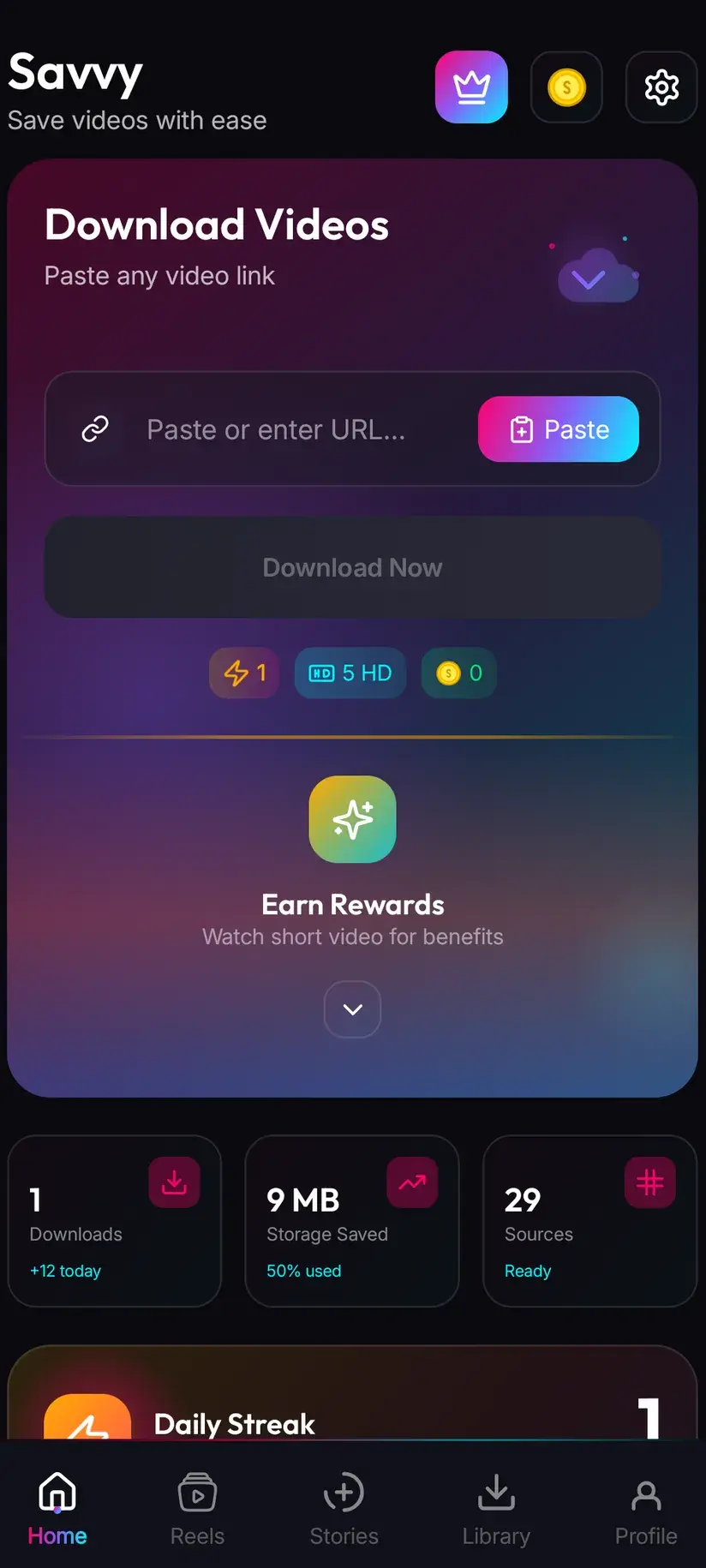
On the video, tap share and pick Savvy from the list of apps. The link is handed straight over and the download starts by itself — Savvy fills its own link field and fires the request without waiting for another tap. You do not see the home screen and you do not touch the clipboard.
Copy-and-paste is the fallback, for a link that reached you some other way. Copy it, open Savvy, tap the Paste button beside the link field, then tap Download. That middle step is worth being precise about, because plenty of downloader apps suggest otherwise: Savvy does not read your clipboard in the background, and switching to the app does not silently start anything. Paste is an ordinary button that reads the clipboard once, fills the field, and then waits for you.
Savvy recognises Kwai by its domains — kwai.com, the mobile m.kwai.com, and the s.kwai.app short links Kwai's own share sheet produces. Anything on a different host is not identified as Kwai and drops into the generic catch-all instead, which matters more here than elsewhere for a reason the next section gets to.
- Share to Savvy — link filled and download started automatically
- Copy link, then Paste — tap Paste to fill the field, then tap Download yourself
- Recognised: kwai.com, www.kwai.com, m.kwai.com and s.kwai.app short links
- A link on any other host is treated as a generic web address, not as Kwai
One route in, and nothing behind it
Every guide in this cluster explains the same underlying mechanism: extraction reads the page a video sits on, finds the media URL the player is using, and fetches that file. Pages change over time, so Savvy does not rely on a single technique — most platforms are backed by a chain of extraction providers, tried in priority order, falling through automatically when one comes back empty.
Kwai is the exception, and it is the honest thing to lead with. Kwai has exactly one extraction provider. Not five, as Instagram has. Not three, not two. One. It is the thinnest coverage of any platform Savvy names by name, and it means there is no chain to fall through — the single route either reads the page or the download fails.
Nobody enjoys writing that, but knowing it is genuinely more useful than a reassuring sentence would be, because it tells you how to interpret a failure. On Instagram, a failed link has already been through five separate attempts, so the problem is almost certainly the link. On Kwai, one attempt did not work, and that tells you far less. It could be the link. It could equally be that the single extractor has temporarily lost its grip on Kwai's markup, which is exactly the situation a second provider would normally cover for.
There is a related detail that closes off the obvious workaround. The provider carrying Kwai is the same one that serves Savvy's generic long-tail route — the one that handles addresses from sites the app does not name individually. So mangling a Kwai URL into some other shape to make it look generic achieves nothing: it arrives at precisely the same extractor. There is no second door.
One practical consequence rather than a limitation: this provider works by submitting a job and polling for the result, so a Kwai fetch can sit on the spinner a little longer than a platform whose first provider answers in one shot. Give it a moment before deciding it has stalled.
- Kwai — 1 extraction provider. No fallback
- Likee — 3. ShareChat — 2. Instagram — 5
- A Kwai failure means the only route came back empty, not that one of several did
- The same provider serves the generic catch-all, so reshaping the URL reaches nothing new
Read this as a reason to keep expectations calibrated rather than to avoid Kwai. When the route is working, a Kwai clip saves exactly as smoothly as anything else, and most of the time it is working. What is missing is the safety net, so an outage is visible to you in a way it would not be on a platform with four spare routes.
What to do when a Kwai link fails
Since there is no second route to wait on, the useful response is a short checklist rather than tapping Download again — which, with one provider, simply repeats the identical attempt.
Start with the link, because that is the part you control. Confirm it points at a single clip rather than at a collection, and confirm the host is one Savvy recognises. Kwai has no path pattern configured in the app, which means every kwai.com address is accepted into the link field at full confidence, whatever follows the domain — a profile page slides in as readily as a video and only fails later, when extraction finds no file behind it. The field accepting your link is not evidence of anything.
Then give it time rather than repetition. The extractor behind Kwai is maintained independently of the app and recovers on its own schedule, usually without anyone announcing it. A link that returns nothing this afternoon quite often resolves tomorrow, unchanged. Hammering the button in the meantime achieves nothing at all, since each press is the same single request.
Then consider whether the clip exists somewhere with more routes. Short-video creators very frequently cross-post the same clip to several platforms. If the video you want also sits on a platform Savvy carries more deeply, that copy has multiple extraction providers behind it and a much better chance of resolving today. It is a workaround rather than a fix, but it is a real one, and it beats waiting.
What will not help is worth listing too, because these are the things people try. Reinstalling changes nothing — the provider chain is not stored locally in a way a reinstall repairs. Nor does switching networks, clearing the app's cache, or editing the URL by hand. An empty extraction result is a result, not a glitch on your device.
- Check the link — one clip, and a kwai.com, m.kwai.com or s.kwai.app address
- Wait and retry the same link later — the extractor recovers on its own schedule
- Look for a cross-post on a platform with a deeper provider chain
- Skip reinstalling, cache-clearing and URL editing — none of them touches the cause
Which Kwai links point at something to save
For a download to happen there has to be one video behind the link, and on a feed-first app that distinction is easy to lose.
The link you want comes from the share control with a clip open — a post's own address. What will not resolve is anything that represents a set of posts: a creator's profile, a hashtag or effect page, the discovery feed, a search result. There is no single file underneath any of those.
Because Kwai has no path pattern for Savvy to score against, all of them are accepted into the field without complaint. That is the opposite of helpful, so build the habit of checking rather than relying on the app to object. Open the link in a browser with no Kwai session: one video playing means the link is good, while a grid of thumbnails or a login prompt means going back and sharing from the open post instead.
The other class of failure is not a link problem at all. A clip the creator has deleted, a private account, or a video restricted in your region will not resolve, because a downloader reads the same page your browser reads and receives the same refusal. No app changes that, whatever it advertises.
- Works — a single clip's link, taken from the share control with the video open
- Does not work — profile, hashtag, effect, discovery and search pages
- Does not work — deleted clips, private accounts, or region-restricted videos
- The link field accepts every kwai.com address, so it will not warn you about any of this
If a clip reached you as a forward inside a chat app, the link attached to it is sometimes a preview or tracking wrapper rather than the post's real address. Open it, let it land, and copy the address from there before pasting.
Quality, and what a download costs
Once the link resolves, Savvy lists the resolutions that clip genuinely exists in and lets you pick. That list comes from what Kwai is serving, not from a menu of possibilities.
Standard definition, up to 480p, is free. It comes out of a daily allowance rather than a coin balance, so ordinary everyday saving costs nothing. Above 480p you spend coins, Savvy's in-app currency.
Set expectations by the format. Kwai clips are shot on phones, exported vertical and compressed for mobile data budgets, so a good many top out at or below 480p — inside the free tier already. Downloading cannot add detail that was never uploaded. If SD is the best the picker offers, that is the ceiling for that clip, and a higher tier would buy you a larger file of the same picture rather than a better one.
- SD video, up to 480p — free, from your daily allowance
- HD and Full HD video — 10 coins, or one HD credit if you have one
- 2K video — 15 coins
- 4K video — 20 coins
- Images and audio — 5 coins
Coins are earned as well as bought: a short rewarded ad or a daily check-in both top up the balance, and the Coin Shop lists those routes alongside the packs. Premium is the other way out — it removes ads and lifts the download limits, so the coin arithmetic stops applying. The free tier is ad-supported through Unity Ads, which collects your device's advertising ID; that is set out in the Savvy privacy policy.
Watermarks, storage, and what you may keep
Savvy adds no watermark of its own, and it removes none either. Whether a saved clip carries one is settled at the source, before any downloader sees the file. Kwai, like short-video platforms generally, tends to serve clips with its own branding and the creator's handle burned into the frame, and all of that comes across with the file. It is pixels in the picture rather than a layer that can be switched off — taking one out means cropping and re-encoding, which is video editing and costs quality at the edges.
The only place in Savvy where a genuinely unstamped file can be requested is TikTok, where a few TikTok-specialist extractors support it. Those are TikTok-only, they are not in Kwai's chain, and Kwai's chain has room for exactly one provider anyway. Treat any app promising watermark-free Kwai downloads accordingly.
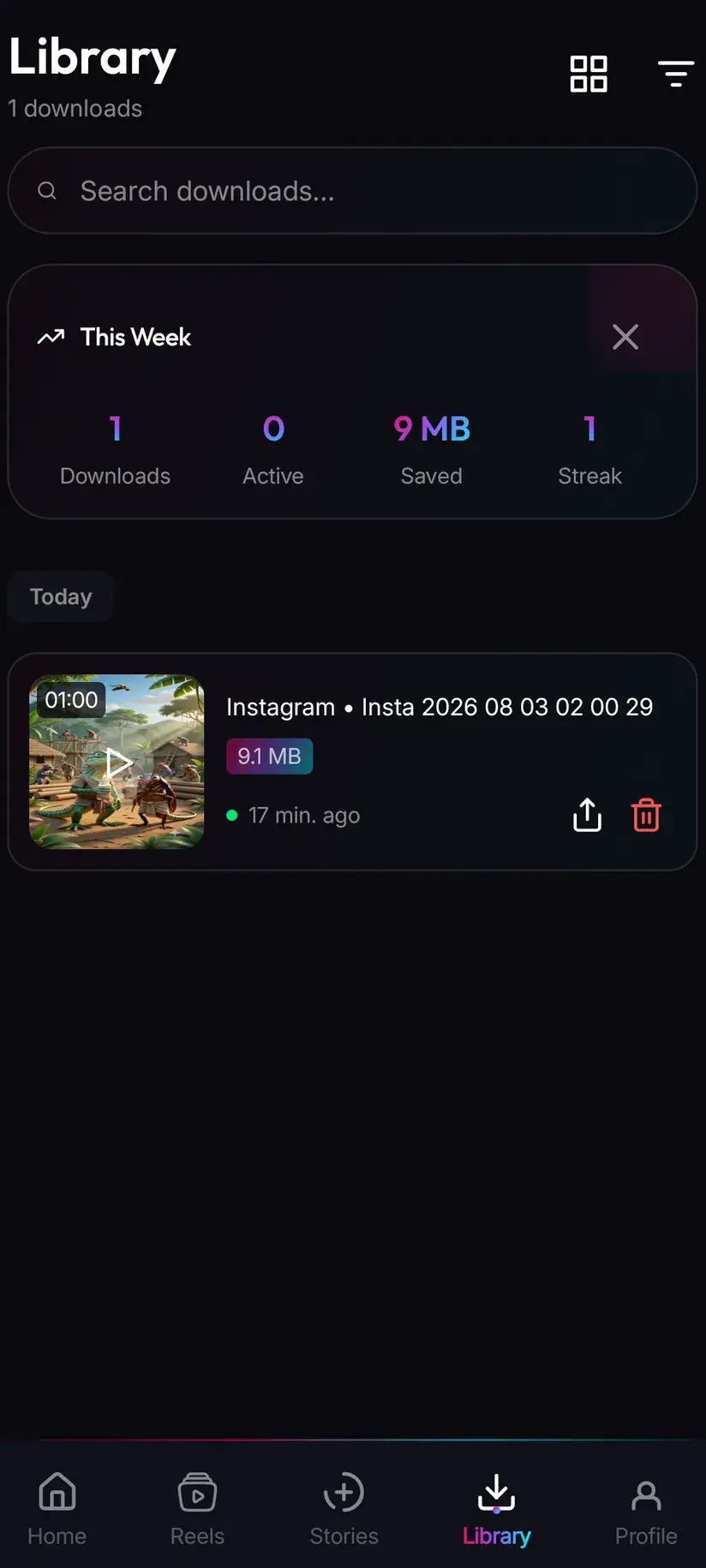
A finished download lands in your device's Downloads folder, inside a Savvy directory sorted by platform — so a Kwai clip goes to Downloads / Savvy / Kwai. It is an ordinary MP4 from there: it appears in your gallery, plays in any video app, and can be shared onward like any other file. Library inside the app is the faster way back to it, with search and filters across everything you have saved, and Storage shows what each file is costing you in space so you can clear a batch at once.
Finally, the part that has nothing to do with the app. Short-video platforms make reposting effortless, which makes it easy to forget the clip belongs to whoever made it. Keeping a copy of your own posts, saving something to watch offline, or using a clip with the creator's permission is ordinary. Re-uploading someone else's work as your own is not, and no download setting changes where that line sits.
Downloading something is not the same as holding rights to it. Personal offline viewing sits in very different territory from redistribution or monetisation. Is downloading videos legal? sets out where the line usually falls — worth reading once before it becomes a habit.
Procedure
How to download a Kwai video
Under a minute once the app is installed. No Kwai account is needed for a public clip, and no Savvy account is needed at all.
Install Savvy and allow storage access
Install Savvy from Google Play and open it. Grant the storage permission when it is asked for — that is what lets a finished file be written somewhere your gallery can see, rather than staying locked inside the app.
Open the clip on Kwai
Open the video itself rather than a profile or a hashtag feed. Play it once to confirm it is the right clip and that it is publicly viewable.
Share it to Savvy
Tap the share control on the open clip and pick Savvy from the list of apps. The link is handed across and the download starts on its own. If Savvy is not offered, copy the link instead and continue with the next step.
If you copied, check the host
Savvy recognises kwai.com, m.kwai.com and s.kwai.app. A link on any other host is not identified as Kwai, so open it in a browser, let it land, and copy the address you end up on.
Tap Paste, then Download, and give it a moment
In Savvy, tap the Paste button beside the link field — it fills the field and does nothing more. Tap Download to start. Kwai's single extractor submits a job and polls for the result, so the spinner can sit a little longer than on other platforms before anything appears.
Pick a quality, then find it in Library
Savvy lists the resolutions that clip genuinely exists in. SD up to 480p is free from your daily allowance; higher tiers spend coins. When it finishes the file is in Downloads/Savvy/Kwai, and listed under Library inside the app. If the download fails instead, check the link is a single clip and try the same link again later rather than immediately.
Frequently asked questions
- How do I download a Kwai video to my phone?
- The quickest route is Kwai's own share control: open the clip, tap share, and pick Savvy. The link is handed over and the download starts by itself — nothing to type. If Savvy is not in the share sheet, copy the clip's link instead, open Savvy, tap the Paste button to fill the link field, then tap Download. Paste only fills the field; it does not start the download on its own.
- Why do Kwai downloads fail more often than Instagram ones?
- Because Kwai has exactly one extraction provider behind it, the thinnest coverage of any platform Savvy names. Instagram has five, tried in order with automatic fall-through, so four separate routes can cover for the first one failing. Kwai has no chain at all — the single route either reads the page or the download fails. That does not make Kwai unreliable most of the time, but it does mean an outage at the provider is visible to you rather than absorbed by a backup.
- What should I do when a Kwai link will not download?
- First check the link points at one clip rather than at a profile, hashtag or search page, and that the host is kwai.com, m.kwai.com or s.kwai.app. Then wait and try the same link again later rather than pressing Download repeatedly, since with a single provider each press is the identical request, and the extractor recovers on its own schedule. If you need the clip now, check whether the creator cross-posted it to a platform with a deeper provider chain. Reinstalling, clearing the cache and editing the URL do not help.
- Is downloading Kwai videos free?
- Standard definition, up to 480p, is free — it comes from a daily allowance rather than any balance, and since Kwai clips are shot and compressed for phones a good many sit inside that tier anyway. Above 480p you spend coins: 10 for HD or Full HD (or one HD credit), 15 for 2K, 20 for 4K, and 5 for an image or an audio-only file. Coins are earned free by watching a short rewarded ad or checking in daily, or bought in packs. Premium removes ads and lifts the limits instead.
- Can I download Kwai videos without the watermark?
- No. Savvy adds no watermark of its own but removes none either, and Kwai generally serves clips with its branding and the creator's handle already burned into the frame. That is pixels in the picture rather than metadata, so the only way to take one out is to crop and re-encode, which costs quality at the edges. The one place an unstamped source can genuinely be requested in Savvy is TikTok, through a few TikTok-only extractors that have nothing to do with Kwai.
- Which Kwai links does Savvy accept?
- It recognises the kwai.com and www.kwai.com domains, the mobile m.kwai.com, and the s.kwai.app short links the share sheet produces. Kwai has no path pattern configured, so every address on those hosts is accepted into the link field at full confidence — including profile and hashtag pages that cannot resolve, since there is no single file behind them. The field taking your link is not confirmation that it will work; check that it opens one video in a browser.
- Do I need a Kwai account to download?
- Not for a public clip. If the link plays in a browser with no Kwai session, Savvy can read it with no account and no sign-in anywhere. You do not need a Savvy account either — sharing or pasting a link and downloading works without signing up for anything. Private accounts, deleted clips and region-restricted videos are a different matter: a downloader reads the same page your browser reads and receives the same refusal.
- Where do downloaded Kwai videos save?
- In your device's Downloads folder, under a Savvy directory sorted by platform — so Kwai clips land in Downloads/Savvy/Kwai. From there it is an ordinary MP4 that shows in your gallery and plays in any video app. Inside Savvy, the Library screen lists everything you have saved with search and filters, and the Storage screen shows what each download takes up so you can clear several at once.